
Appearance
Making a plan
A plan is the schedule a lesson, rehearsal or event runs to: what is taught, where, on which day, at what time, for how many sessions, and by whom. Everything else follows from it — the diary, the registers, the fee, the teacher's pay.
New plan makes one. It is the only screen that creates a plan from nothing; everything afterwards is editing one.
Where it is
| On | Open |
|---|---|
| A teacher, school or centre | the record's Schedule sub-tab |
| A group | its Activity tab |
| An event | its Activity tab |
New plan sits in the buttons above the list — Add a new plan, starting in this year. The year it starts in is the year the tab is showing, so set that first if it is not the one you want.
On a group, Activity is not Members
Members is who is in the group. Activity is the group's rehearsal schedule, which is what a plan is.
One step: Save makes it
Save lays the sessions and makes the plan in a single step. There is no preview to take first, and nothing is half-made: either the plan, its year and its diary entries are all written, or none of them are and the reason shows in red under the buttons. Any edit clears the refusal so you can try again.
The edit screens still preview first
Edit Schedule, Edit Recurrence and Edit Details on an existing plan keep their Preview changes step, and it is still worth taking — a plan that is already running has lessons that may be protected from a re-lay. A new plan has none, which is why it does not ask.
The form
The heading reads New plan and the academic year it starts in.
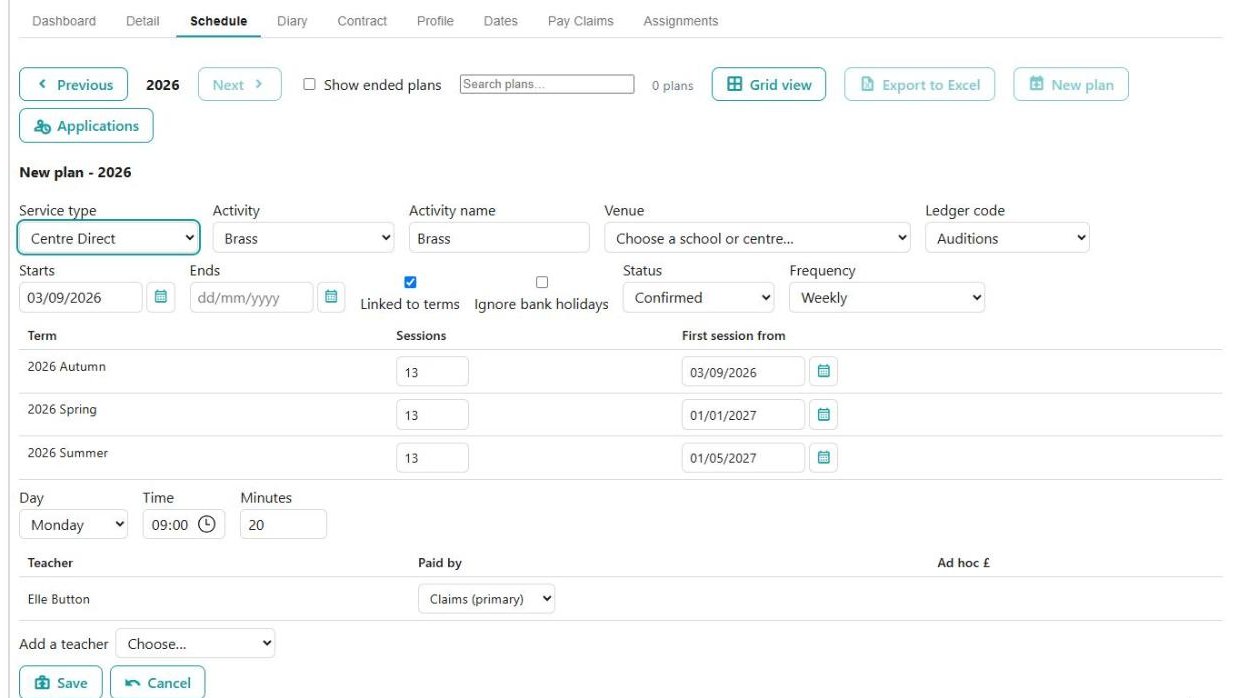
The panel above is a Centre Direct plan on a teacher's Schedule tab, which is the plainest case: directly billed, so no rate is asked for, and a service type that diarises each term's sessions, so the table reads Sessions rather than Sessions (at most).
What is being taught
| Field | What it does |
|---|---|
| Service type | What kind of plan this is. It decides almost everything else on the form — which activities are offered, whether a rate is asked for, whether the term sessions are a target or a ceiling. The first one that suits is chosen for you, or on a group or event its own |
| Activity | The activity within it. Only activities of the matching kind appear |
| Activity name | What the plan is called. It fills in from the activity |
| Venue | The school or centre the plan runs at — Choose a school or centre…, with centres marked (centre). Only on a teacher's, group's or event's plan; a school's or centre's own plan is at itself |
| Ledger code | Where the money is accounted. It fills in from the service type |
Type the name last
Activity name is refilled from the activity every time you change the activity, so a name typed before the activity was settled is overwritten. Choose the activity first, then rename it if you want something else.
The rate, on a school-billed plan or a scheduled purchase
These rows appear only for a service type in the Indirect (school-billed) or Purchases category:
| Field | What it does |
|---|---|
| Rate | The activity rate the school is charged at. Only rates that suit this plan are listed — see below |
| Discount | No discount, Percentage or Value per term, and then a Percent or Value £ box |
The hint under them says what happens after Save: Billed to the school; priced from its sessions once made, and the school's SLA kept in step. All of that is done for you.
Why a rate you expected is not listed. The list is filtered twice. First by whether the rate's charge basis suits the plan — whether it is linked to terms, and how often the service type invoices. Second, a school-billed service type that diarises up to a yearly maximum is offered rates billed by Diary only, because a rate billed by Schedule would invoice the school from the term counts, which that mode treats as a ceiling the diary is expected to come in under. If nothing suits at all, the box reads No rate suits this plan.
A year rate puts every session in the first term
Choose a rate charged per year or per provision and the term table is replaced by a line telling you how many sessions will be laid and from when — all of them in the first term. The counts are not yours to set on such a rate.
When it runs
| Field | What it does |
|---|---|
| Starts / Ends | The plan's own dates. Leave Ends empty for a plan that runs on |
| Linked to terms | Ticked, the sessions are spread across the year's terms. Unticked, the plan is one block and the table collapses to a single row called The year. Not offered on an event |
| Ignore bank holidays | Lay sessions on bank holidays as well |
| Status | Confirmed, Draft, Pending or Schedule required |
| Frequency | Weekly, Fortnightly, Monthly, or None (dates set by hand) |
| Maximum sessions in the year | Only for a service type that fits as many sessions as the year allows. Left blank it takes the year's terms' default sessions added together, which is shown as the box's placeholder |
Below these sit Day, Time and Minutes — the day of the week, the start time and how long each session lasts.
The sessions
| Column | What it is |
|---|---|
| Term | Each term of the year, or The year when the plan is not linked to terms |
| Sessions, or Sessions (at most) | How many sessions that term gets. The heading changes to (at most) when the service type treats the figure as a ceiling rather than a target |
| First session from | The date that term's sessions start counting from |
Which heading you get, and the hint above the table, both come from the service type's Diarise mode:
- Fit as many as each term allows — Each term gets as many sessions as fit, up to its sessions below - a term with less room gets fewer.
- Fit as many as the year allows — Sessions are laid in date order up to the yearly maximum …; the term sessions below are kept but do not limit the lay.
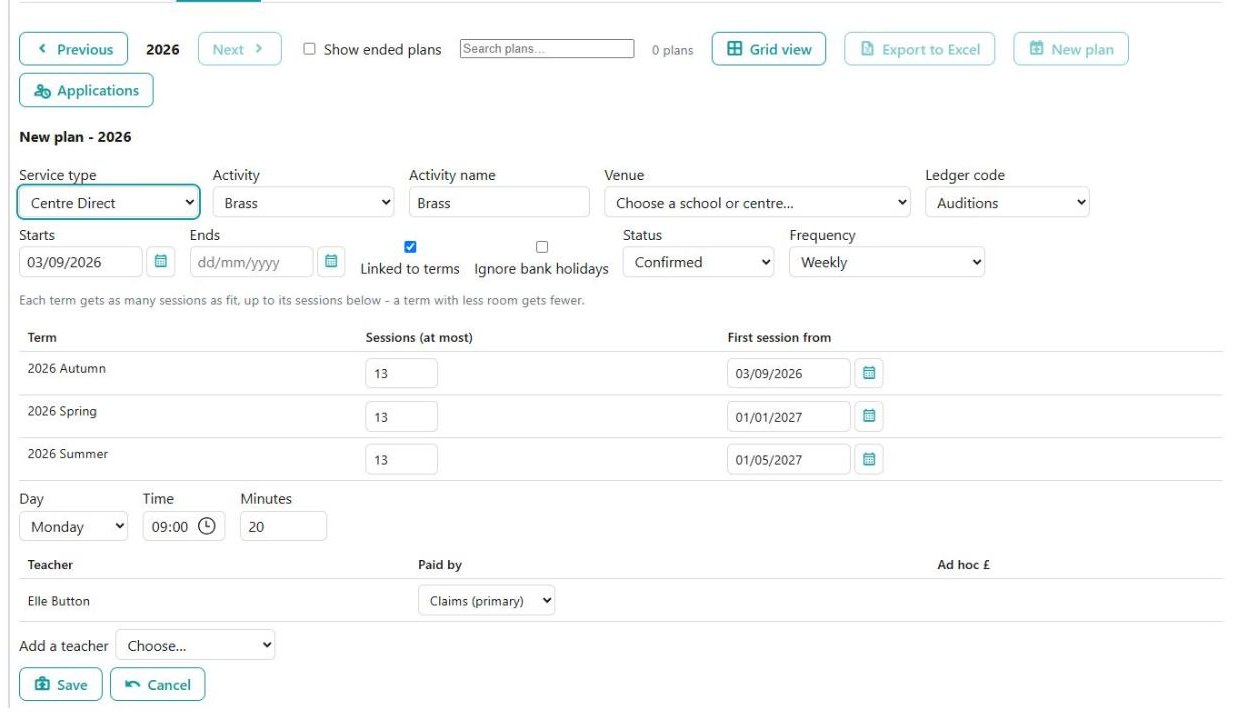
That is the same plan as the picture above, with only the service type's Diarise mode different: the hint appears above the table and the column becomes Sessions (at most). Nothing else on the form changes.
How many sessions get diarised explains the three modes and what each does to the fee.
Who teaches it
The teachers table below takes one row per teacher, with Add a teacher underneath. Which columns it shows depends on your settings — Support staff, Paid by and Ad hoc £, Travel allowance, Break allowance, Travel distance.
On a teacher's own schedule that teacher is already in the table, on their primary contract, and cannot be removed — the plan is theirs. An allowance plan takes one teacher only, so there is nothing to add.
It makes every later year too
This is the part that surprises people, and it is deliberate: a new plan is made for the year on show and for every later academic year that is open, in the same step. Make a plan in a year with two years open after it and you have made three years of it.
Three things follow:
- A later year is skipped if the plan has finished by then. Give the plan an Ends date and no year that starts on or after it is made.
- The figures you typed apply to the year on show only. Each later year takes its own terms' default sessions and first-session dates, from Academic Year — not what you typed here. The service type, rate, discount, status, frequency, day, time and length are the same in every year.
- A yearly maximum you ask for is taken by every year. Leave it blank and each year takes its own terms' defaults added up instead.
So the counts to check afterwards are on each year's own Schedule tab, not only the one you were looking at.
What it tells you when it is done
The note above the schedule names the plan and counts what went into the diary across every year it made:
Brass has been made (36 diary entries).
One entry reads 1 diary entry. Then each warning follows as its own sentence in the same note:
Brass has been made (36 diary entries). 2026 Term 2: 11 of 12 sessions fit. 2027 Term 2: 11 of 12 sessions fit.
| Warning | What it means |
|---|---|
| 2027 Term 2: 11 of 12 sessions fit | That term had room for fewer sessions than it was given. Only for a service type that fits as many as each term allows — a term that simply came up short |
| 2026: no sessions are laid - set the maximum sessions for the year (Edit Schedule) to lay them. | A year that lays up to a maximum, with no maximum set. The year is made, and made empty. Put the figure in on that year's Edit Schedule and diarise it |
Each warning names its year, because one plan can warn about several. A refusal names the year too, so 2027: … in red tells you which year the plan could not be laid in — and nothing at all was made.
The same shortfall reads differently on two screens
New plan says 2026 Term 2: 11 of 12 sessions fit. — the year, then a full stop, run together as sentences in one note. Edit Schedule and Edit Recurrence say Term 2: 11 of 12 sessions fit — bare, as a bullet under Not every term has room for its sessions:.
Same shortfall, two screens, two forms of words. Neither is wrong.
When Save is greyed out, or the form will not open
Save is greyed out until an Activity is chosen, and hovering it says Choose an activity first. If the Activity box is empty and there is nothing to choose, the hint below tells you what to add:
There is no activity for a {service type} plan yet. Add an activity group whose teacher activity type is {kind} (Settings > Activity Groups), then an activity in it (Settings > Activities).
The kind named is the one that matches the service type's category — Tuition Activities, Group Member Activities, Event Activities, Purchased Activities or Allowance Activities.
The form does not open at all, and says why instead, in four cases:
| Message | What to do |
|---|---|
| There is no service type a plan can be made for here - add one of the right category in Settings > Service Types. | Add one — see Activity settings |
| You need to create at least one Ledger Code. | Ledger Codes |
| Before creating a Teacher activity you must first define at least one Primary Contract for this Teacher. | Give the teacher a contract on their Contract tab, marked primary |
| This academic year is not open for scheduling. | Open the year, or move the tab to one that is open — see Academic Year |
See also
- How many sessions get diarised — the Diarise mode that decides how many of the sessions you set actually get laid
- A schedule is empty, or will not let me change it — changing a plan that is already running
- Academic Year — the term dates and default sessions a new plan starts from
- Contracted time on a lesson — how much of a salaried teacher's contract these sessions account for
- How a fee is calculated — what the plan's sessions become on an invoice