
Appearance
Reports
A Report is a saved way of presenting a Query's results. It remembers the query it came from, the parameter values to run it with, which columns to show, and how to lay them out.
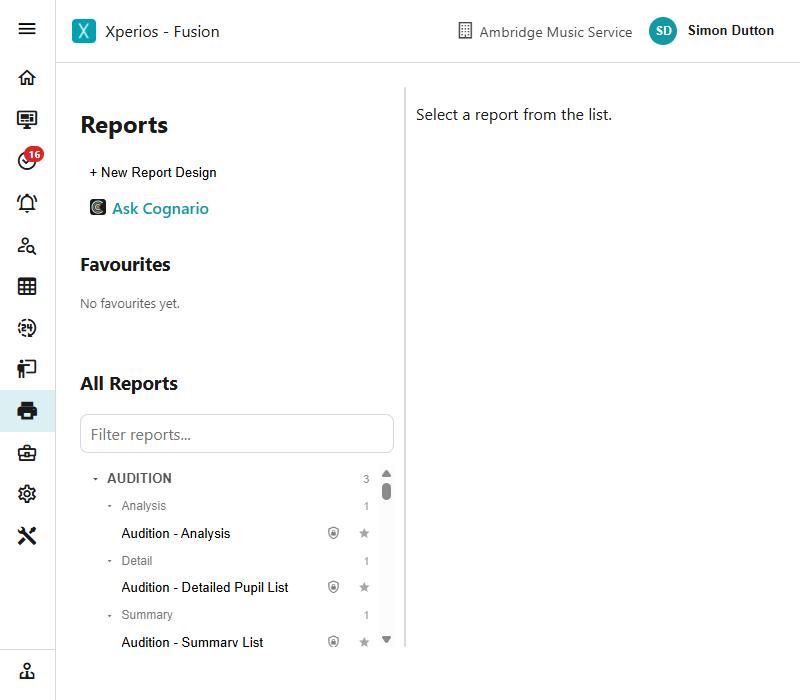
Two shapes of report
Reports cover a wide range, from "this grid, filtered, with these columns" up to a full page-designed document. There is one Report record behind both — what differs is how the layout was arrived at.
| A saved view | A designed layout | |
|---|---|---|
| Built from | A query's results screen | The Report Designer |
| How you make one | Set the view up, then Save as Report | New Report Design |
| What it captures | Your columns, filter and whichever tab you were on — Results, Group By, Pivot or Visual | Bands, positioned fields, groups, page setup |
| Viewed as | The same results grid you built it in | A paginated, printable document |
| Good for | Getting back to a view you use often | Something that has to look right on paper |
See Reports built from a query and The Report Designer. Both are made by Paritor for now — on your own database you run reports, and ask us for new ones.
The Reports list
The list works like Queries: filter by name, star reports as personal Favourites, and run them. A report Paritor supplies carries a lock and is read-only here; one your own service created before November 2026 can still be renamed, described or archived.
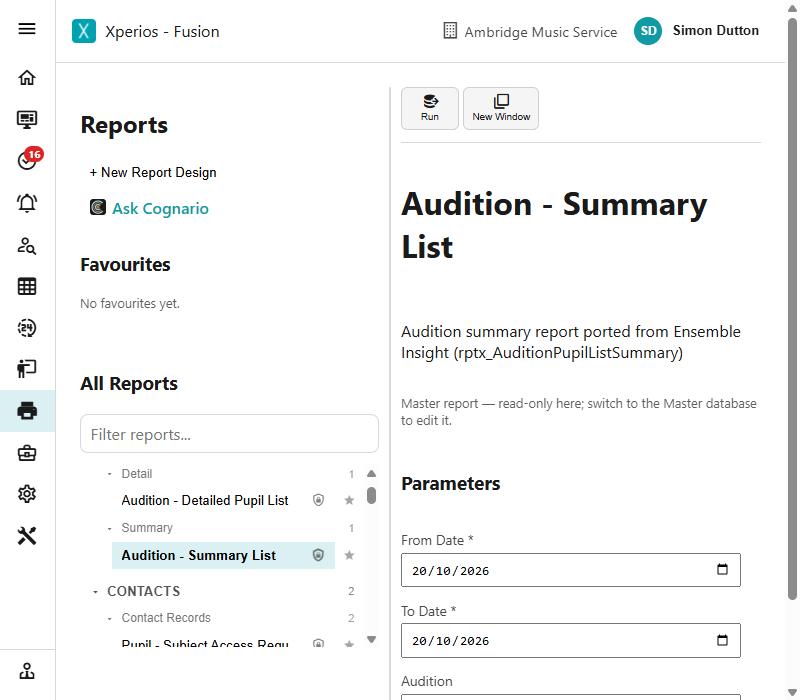
Run opens the report in the current tab. Run In New Window opens it in a new browser tab, which is the quicker way to compare two sets of parameters side by side.
Running prompts you for parameters, pre-filled with the values saved against the report — so most of the time you can accept them and carry on.
The two ways to edit a report
These do different jobs and it is worth knowing which you want.
Edit — on the Reports list itself. Changes the record: its name, description, sharing, and whether it is archived. It does not touch the layout.
Edit Definition — reopens the report where it was built. For a designed layout that is the Report Designer; for a saved view it is the query results screen, with your columns, filter and transform restored, ready to adjust and save again.
On your own database Edit Definition appears only on a designed report. Saving a query view is Master-only, so there would be nothing to save a change into — ask us for the alteration instead.
Master reports are read-only
A report that came from the Master database can be run and favourited like any other, but neither Edit nor Edit Definition is offered outside the Master database itself — and reports are not created outside Master either, so there is no copy to take. If you need a variant, ask for it: see asking for a query you cannot see.
In this section
- Reports built from a query
- The Report Designer
- The Report Viewer
- Sections and emailing
- Scheduled delivery
Invoice and credit note documents
Two supplied reports produce the document itself: Invoice and Credit Note.
They are what View and Print use on a ledger line, so staff see the same document the payer does — the lines, any remission, subsidy or discount, VAT, delivery, what has been paid, and the balance outstanding, under your own logo.
The Credit Note report covers debit adjustments as well as credits, and shows every line under the number rather than just the first.
Parents get their copy a different way
A parent's emailed link goes to their own secure copy on the Portal. These reports are the staff view of the same document.