
Appearance
Xperios Fusion
Xperios Fusion is the browser-based version of Xperios. Every part of it is covered here.
What is in Fusion
The menu down the side groups the product into bands:
- Services — what your service offers: tuition, groups, events, auditions, resources and the rest
- Contacts — everyone your service deals with, with a tab for each role they hold
- Queries — saved questions you ask of the data
- Reports — a query's results laid out to be read, printed or sent
- Dashboards — live tiles you keep on screen
- Issues — support tickets, both the ones raised with you and your own with Paritor
- Tasks — what is waiting on your team
- Notifications — being told when something happens
- Connected mail accounts — sending your Xperios email from your own mailbox, and the mail it finds there
- How your emails look — the header, colours, footer and signature on every email you send
- What's new — the release notes, and the notice that tells you there are some
- Data Import — loading records from a spreadsheet
- Business Management — the working lists: invoices, hires, pay, requests waiting on a decision
- Tools — SMS credits, data import and housekeeping
- Settings — the lists Xperios works from
New to Fusion?
The blog has a short introduction: What is Xperios Fusion?
Queries, Reports and Dashboards
These three build on each other, and it is worth knowing which you want:
- A Query is a saved question you ask the database — it returns rows.
- A Report takes a Query's data and lays it out for printing, PDF export, or emailing — with titles, groupings, and totals.
- A Dashboard takes a Query's data and turns it into a live tile — a number, chart, or table — on a personal or shared at-a-glance screen.
Which tool for which job?
| I want to… | Use |
|---|---|
| Ask an ad-hoc question of the data | Query |
| Get a printable/emailable formatted document, possibly split per-person | Report |
| Get that document sent out automatically on a schedule | Report → Schedule |
| Keep a live at-a-glance number/chart on screen | Dashboard, via a Dashboard Item built from a Query |
| Be told the moment something crosses a threshold | Query → Alerts |
| Keep a spreadsheet refreshing from Xperios | Query → Data feeds |
The top bar and the Home page
Needs attention. Top right of Home, above the adverts, is a short list of what is waiting for you — nothing to configure, and when there is nothing in any of it the panel is not there at all.
| Waiting tasks | The same counts as the Tasks band's badge, one line per kind of task, biggest first. Only tasks your user group rights reach are listed - administrators see all of them - and where there are more than five, the rest are added up as Other tasks |
| Unread notifications | Events in your own feed from the last 30 days that you have not read |
| Issues with news | Issues raised with you that have changed since you last marked your issues read |
Each line opens the screen it counts. The task counts refresh about every minute and the notification count every half minute, so the panel keeps up without reloading the page.
What counts as "news" on an issue
An issue whose last update is later than the last time you read your issues, and which is still in play — with the help desk, with a team, being resolved, awaiting release, or logged as a feature request. One that is closed, or sitting with the person who raised it, does not count. The stamp moves when you read your issues in the Issues Manager, so the count clears by working through them.
Issues with news only appears for people whose menu includes the Issues band.
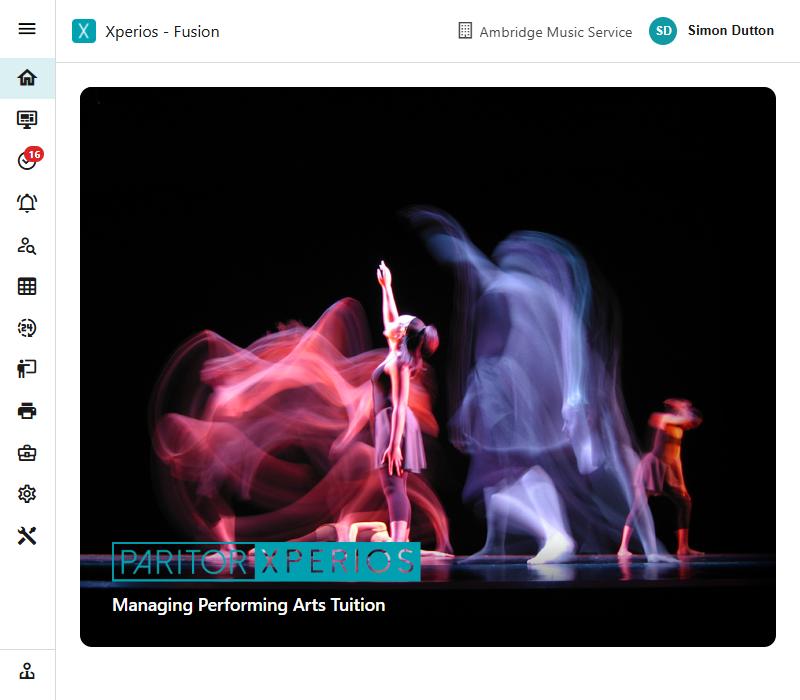
The welcome picture. Home opens on one of seventeen pictures, picked at random, and changes to another every couple of minutes — and whenever you click Home in the menu again.
Adverts. Home shows notices for staff — Paritor's and your own — one at a time, changing every minute. Hide Adverts collapses the panel to a Show Adverts button, and that choice is remembered in the browser you are using, so hiding them on your own machine does not hide them for anybody else. Your own are written in Notifications and Adverts.
The AI button. Where your organisation has an AI key, the top bar carries an AI button. Paste any text into it — a letter, a note, a reply you have drafted — and it will rewrite it politely, in a friendlier tone or more formally, shorten it, summarise it, correct it, translate it, or do whatever you type as your own instruction. It gives you the result to read and copy; nothing is sent anywhere and nothing is saved. Translation offers a list of languages and takes any other you type in.
With no key the button is not there at all. The key is set in System Configuration → Connect.
It keeps the facts, and you keep the decision
Each instruction tells the AI to leave names, dates and times exactly as they are — but it is still worth reading the result before you use it. Nothing is sent to anyone until you paste it somewhere yourself.
Finding help from inside Xperios
| Assistance → Documentation | Opens this guide |
| Assistance → Get Started | Your own training material, from the Library |
| Assistance → Online Resources | Your other published Library items |
| About → User guide | The same guide, from the version screen |
Get Started and Online Resources show the Library items your organisation has published — Get Started the ones marked as training content, Online Resources the rest. If they are empty, nothing has been published yet rather than anything being wrong.
How the screens work
Most of Xperios is built from one pattern — a list on the left, the chosen record on the right, with filters behind a funnel. It is worth reading Record cards once; after that every screen in this guide will be familiar.
Looking a field up
Field reference lists every field on every screen with its exact property name, whether it is required, any length limit, and — for a field that is not always on screen — what brings it into view.
Reach for it when you are writing a query or an import and need a field's real name, or when a setting you were told about is not where you expected it.