
Appearance
Exam Sessions
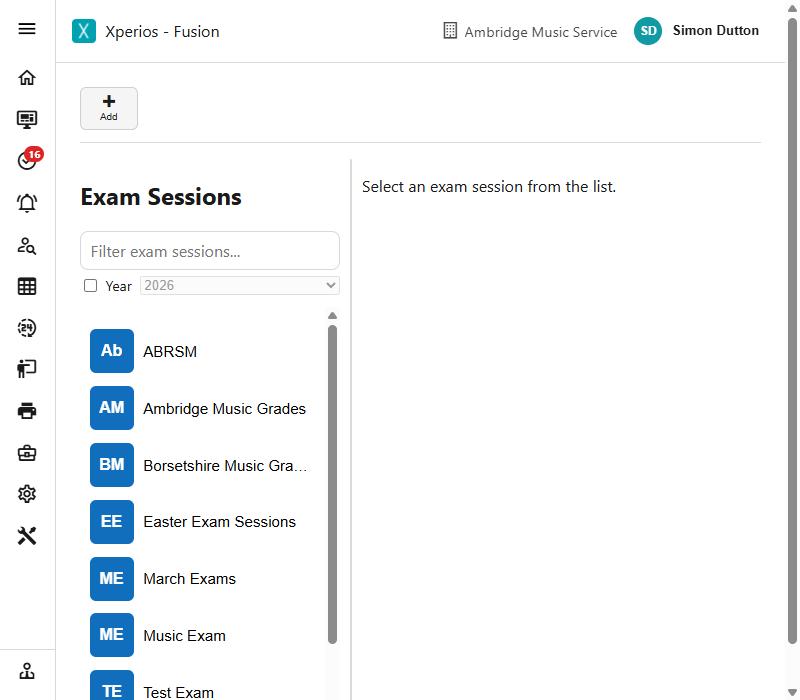
An exam session is a sitting: a particular board's exams, on particular dates, that pupils are entered for.
Setting one up
Add starts a new session, set Live, in the current academic year and carrying its dates, with the first exam board and its first grade, the first Exam Sessions service type and its ledger code, the first VAT code, and the next code. Where there is no exam board, or the board has no grades, Add refuses.
To save, a session needs:
- a name and a code of letters, digits and dashes
- an Exam Sessions service type
- an end date not before the start
- at least one grade
- a subject, while subjects are being asked for
A session is Live or Pending. Open date and close date are when entries can be made, which is not the same as when the exams are held - a session usually opens months before it sits.
What you ask the applicant for
The Detail tab's Request settings decide what an entry has to supply, and each one that is switched on brings its own tab onto the screen:
| Request | What it asks for | Tab it adds |
|---|---|---|
| Subject | Which subject they are entering | Subjects |
| Grade | Which grade | Grades |
| Time Slot | Which slot they want | Time Slots |
| Unavailable Dates | Dates they cannot attend | - |
| Teacher Permission | Their teacher's agreement | - |
| Prerequisite | A prerequisite, with your own question and its date | - |
"The Grades tab has disappeared"
Those three tabs only exist while their Request setting is ticked. If Subjects, Grades or Time Slots is missing from a session, the matching Request box on the Detail tab is off.
Turning subjects off removes them
If you stop asking for subjects, the subjects already chosen are removed when you save. Decide before you enter them.
An additional information form covers anything the standard questions do not, and teacher text is what you want said to the teacher being asked for permission.
Certificates
Where Certificate Offered is ticked, a certificate can be bought with the entry at the certificate cost you set.
Entries
The Applicants tab is who has been entered. An entry carries the pupil, the payer and whoever made the booking, the application date and reference, and - once settled - the exam time and exam centre.
An entry is Active, Cancelled, Modification Requested or Requested Cancellation. The last two are a parent asking for something through the portal rather than a decision you have made.
Entries take the usual reductions: bursaries and discount codes apply to an exam fee as they do elsewhere.
Results
A result is recorded against the pupil, not against the session: the board, subject and grade, the level achieved, the date passed, who taught them, and any notes. It stays on the pupil's record for good, so a pupil's exam history survives the session being archived.
Teachers can enter results themselves
A teacher can record and amend exam results in the Portal for any pupil they teach - or that a teacher they line-manage teaches - counting this academic year and last, so a pupil who has since left can still have their result entered. They cannot touch anybody else's pupils.
Archiving
A session in use is archived rather than deleted, so the entries and results recorded against it stay readable.