
Appearance
Connected mail accounts
Xperios can send your email through your own Microsoft 365 mailbox, so that what you send from Xperios leaves as you rather than from the service's address, and sits in your Sent items like anything else. The same connection lets Xperios read the mailbox for correspondence with your contacts and offer it for their journals.
It is set up per person, from the user menu — your name and picture at the top right of Fusion:
- Connected mail account… — connect a mailbox, choose what it is used for, and add shared mailboxes
- Review found mail… — approve or decline the messages the scan has found
A number beside Review found mail — and a badge on your picture — means something is waiting for you.
Connecting a mailbox
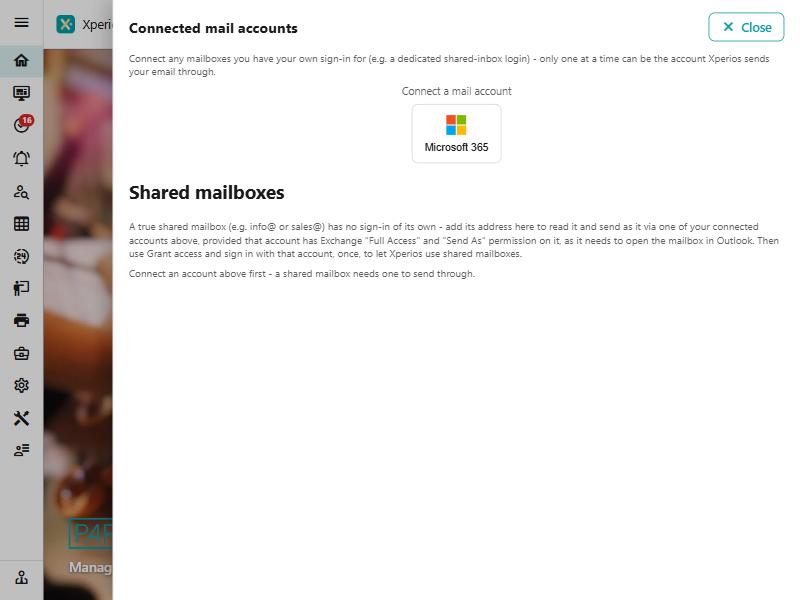
Microsoft 365 opens a Microsoft sign-in window. Finish signing in there and the account appears in the list.
Connecting on its own changes nothing
Both settings start off. Connecting a mailbox never silently starts sending your Xperios email through it — you have to tick that yourself. The same is true of reading it.
Each connected account has two tick boxes:
| Tick box | What it does |
|---|---|
| Send my Xperios email via this account | Your Xperios email goes out through this mailbox, as you |
| Add mail found in this mailbox to contact journals automatically (skip review) | Found mail goes straight onto the contact's journal with no review step |
Only one sender at a time
This is the rule that surprises people. Turning sending on for one account turns it off everywhere else — every other connected account of yours, and every shared mailbox you have added. There is one sending mailbox per person, and ticking a second box is how you move it rather than how you add one.
Shared mailboxes
A true shared mailbox — info@, sales@, enquiries@ — has no sign-in of its own, so it is not connected the same way. It is added by typing its address and choosing which of your connected accounts it rides on.
For that to work, the account it rides on needs Exchange Full Access and Send As permission on the mailbox — the same permission that lets you open it in Outlook. Then use Grant access to shared mailboxes and sign in once more, which is what lets Xperios use shared mailboxes at all.
Permission is checked when you send, not when you add
Adding a shared mailbox does not test whether you may send as it. Microsoft checks that at the moment an email goes, so a mailbox added without the right permission looks fine in the list and fails later. If sending as a shared mailbox fails, the permission is the first thing to check — in Exchange, not in Xperios.
A shared mailbox has the same two choices as a connected account: send as it, and read it for emails from contacts and payment emails.
Found mail, and why it waits for you
Where reading is on, a job looks through the mailbox every twenty minutes or so for messages to and from addresses Xperios holds for a contact. Nothing it finds is visible to anyone else until you have said so.
Review found mail lists what is waiting, with the subject, who it was from or to, when it arrived and the first few lines. Each one gets Approve, which adds it to that contact's journal, or Decline, which leaves it out.
Declining is final
A declined message is never offered again. That is deliberate — the review exists so that something private that happens to be from a contact's address can be kept out for good, rather than coming back every time the scan runs.
The automatic tick box skips this step entirely: everything found goes onto the journal unreviewed. It is quicker, and it is the right choice only for a mailbox that holds nothing but service correspondence.
What does not go through your mailbox
Marketing never does. A campaign always leaves through the service's own sender, even when you have a mailbox connected and sending turned on. That is on purpose: a personal mailbox reports nothing back, so there would be no delivered, opened or unsubscribed figures; it refuses the unsubscribe header a campaign needs; it is rate-limited per mailbox; and a bulk send would put your own address's reputation behind it.
Everything else — the one-to-one service email the facility was built for — goes as you once sending is on.
When it stops working
Microsoft occasionally needs a fresh sign-in, usually after a new permission has been added. The account's reconnect link does that without removing anything or losing the mailboxes riding on it.
"Your organisation needs its IT administrator to approve…"
Xperios asks only for your own mailbox, and for shared mailboxes when you say so. Most organisations let people agree to that for themselves; where yours does not, you get this message, and an IT administrator has to approve Paritor Xperios - Mail Facility once for everybody. It is a single approval, not one per person.
Disconnecting removes the account and the stored permission. Your Xperios email then goes back to leaving through the service's own address.
See also
- Payment Emails — the payment correspondence a read mailbox can pick up
- Contacts — where approved mail lands, on the contact's journal
- An automatic email went wrong, or did not go — the service's own email, which this does not change
- Emailing a lot of people at once — campaigns, which always leave by the service's sender