
Appearance
Xperios Mobile
Xperios Mobile is the app for phones and tablets. It does the same work as the Portal — the same rules, the same data, decided by the same service — but it is built for the way a phone is actually used: standing in a corridor between lessons, or checking on the bus what time your daughter plays.
Not generally available yet
Xperios Mobile is still with testers only. It is not yet in the app stores for everybody, so what follows describes how the app works rather than something your families and teachers can download today. We will say when it is released.
It is the same Xperios, not a cut-down one
Everything the app does goes through the same endpoints as the Portal, and the service decides what you may see in exactly the same way. There is no separate mobile set of permissions, and nothing is decided on the phone. If you can do something on the Portal, the app will let you do it too, unless this guide says otherwise.
What is genuinely different is how it is arranged.
| Built around today | The home screen answers "what is happening now and next", rather than giving you a menu to go hunting through |
| Your roles combine | A teacher who is also a parent and a school governor sees all three at once. There is no switching between them, except choosing which organisation when you act for more than one |
| "Current" means from today | There are no academic-year pickers on the everyday screens. You see what is live now |
| Offline where it matters | Your diary and your registers work with no signal. See working without a signal |
Signing in
You sign in with your Paritor Identity — the same account as the Portal, whether that is an email and password (the button says Sign in with Schooble) or a Microsoft sign-in. Find your organisation the first time, and if you are connected to more than one you can switch between them in the app. See signing in and your account.
What is on your menu
As on the Portal, the menu is built from who you are and what your service runs.
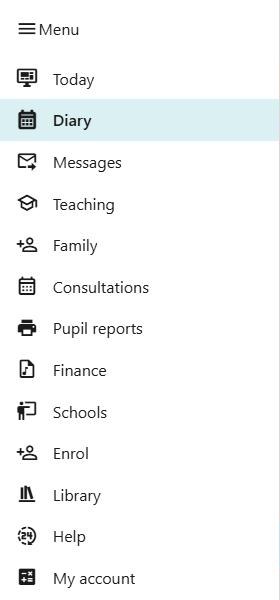
| Shown when | |
|---|---|
| Today | Always |
| Diary | Always |
| Messages | Always |
| Teaching | You teach |
| Family | You have family members on the account |
| Consultations | You have family, and your service runs consultations |
| Pupil reports | You are a payer, and your service runs reporting |
| Finance | You are a payer, and your service shows families their finances |
| Organisations | You act for a school or organisation. The entry is named for what you act for — School, Schools, Organisation or Organisations |
| Tickets | Your service runs Ticket Sales |
| Coach registers | You are a chaperone on a coach route |
| On the door | You are on an event's door team for a performance in the next month |
| Enrol | Your service lets families choose from its catalogue |
| Library | Always |
| Help | Always |
| My account | Always |
| Staff tools | You are service staff, and not currently acting as somebody else |
On a phone, Today, Diary and Messages also sit on the bar along the bottom, because those are the three you reach for without thinking, with More beside them for the rest of the menu. Messages carries a badge when something is unread.
A teacher also has a bell beside their name on the top bar, which is not a menu entry but is where lesson changes and new pupils arrive — see notifications.
Where the app sends you to the website
A few things are still done on the Portal rather than in the app, and the app says so when you reach them:
- Paying through some providers. Card payments through Stripe happen in the phone's own browser and return you to the app. Services on certain other payment providers are sent to the website to pay.
- Applying for an audition or an exam. You can start, but the part that picks times, audition items or exam grades and centres is on the website.
In this section
- Today — the home screen
- Diary and messages
- Notifications — the bell, for teachers
- Teaching on a phone
- Family, finance and enrolling
- Tickets on a phone — buying them, and checking them in at the door
- Acting for a school or organisation
- Signing in and your account
- Working without a signal
- Deleting your Xperios account