
Appearance
Family, finance and enrolling
What a parent or guardian does in the app. It is the same ground as the Portal's family pages, arranged for a phone.
Family
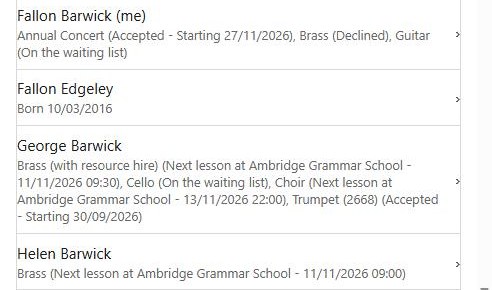
Your family list, and a page for each person with everything the service lets you change — their details, their school, medical information and emergency contacts. Their activities by academic year are there too, with the interests you have registered.
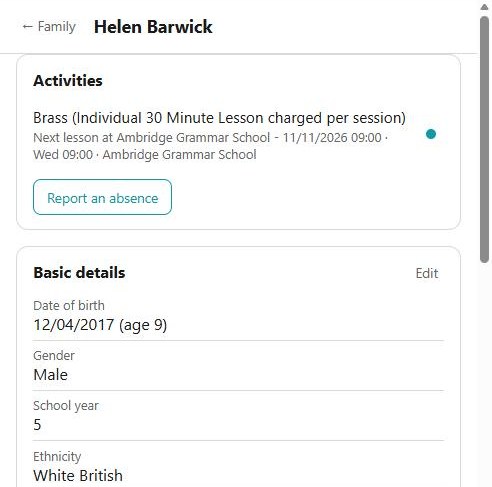
Each person's own page leads with their activities and the next lesson of each, so Report an absence is two taps from opening the app. Below that are their details, contacts, medical information, schools and privacy answers — each with its own Edit, and only where the service lets you change them.
From a lesson in the family diary you can see attendance, message the teacher, and report an absence.
Reporting an absence is the one to do from the phone
It takes a few taps and it reaches the register, so the teacher knows before they travel. Doing it on the way out of the door is exactly what a phone is for — and it is better than a message, which somebody has to read in time.
Offers and applications
An offer can be answered in the app: look at the quote, accept or decline it, and where you are carrying on next year, confirm the progression — including the remission step and its evidence.
You can also ask to switch, cancel or withdraw, apply for an instrument hire, change a tuition application, and, where your service offers one, book a free session.
Evidence for a remission or subsidy can be picked and uploaded from the phone, which is usually easier than finding a scanner.
Finance
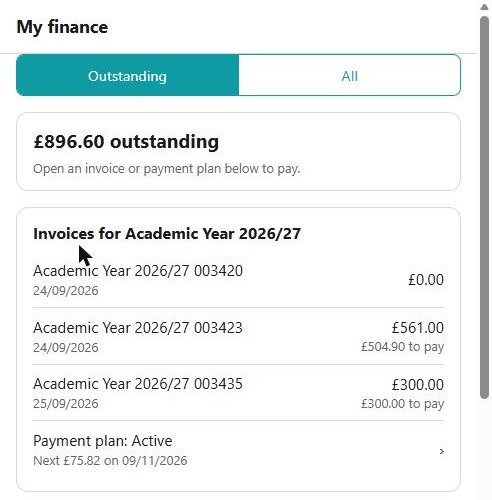
Your invoices, your balance and your payment plan, grouped by academic year, with a switch between what is Outstanding and All of it. You can:
- pay an invoice, or the next instalment of a plan,
- pay an invoice in instalments — joining or starting a plan,
- change the card a plan uses,
- see and remove your saved cards.
Opening an invoice shows what was charged, and then everything that has moved money on it: a Payment, a Credit or Debit your service has made, a Refund, or a Transfer of money between two of your invoices. Each is signed by what it does to the balance — taken off with a minus, added back with a plus — so the lines add up to what is left to pay. A transfer appears on both invoices, which is what makes each of them add up.
How paying works on a phone
A card payment opens your phone's own browser, where you pay, and then returns you to the app — the app never sees your card details. The status updates when the payment settles.
Two things to expect. Where the amount is below the card minimum, you are not offered a card payment: it stays on your account and is collected next time. And services on some payment providers are sent to the website to pay instead.
Consultations
Booking, moving and cancelling a slot to see your child's teacher, where your service runs consultations.
Pupil reports
Your children's published reports, where your service runs reporting.
Enrol
The catalogue — items, or venues and courses — registering an interest, picking up an application you had started, and the whole application through to checkout and payment. That includes an individual application, an event group and a delegate list.
Auditions and exams are the exception: start them in the app, but the part that picks times, audition items or exam grades and centres is on the website, and the app will tell you so.
Library and Help
Library is the material your service has published. Help is the same assistant as the Portal's: ask a question, read the answer, and ask for a person if you need one.
See also
- The Portal's family pages — the same things on a computer
- Making an application — the wizard explained step by step