
Appearance
Menu
The Menu
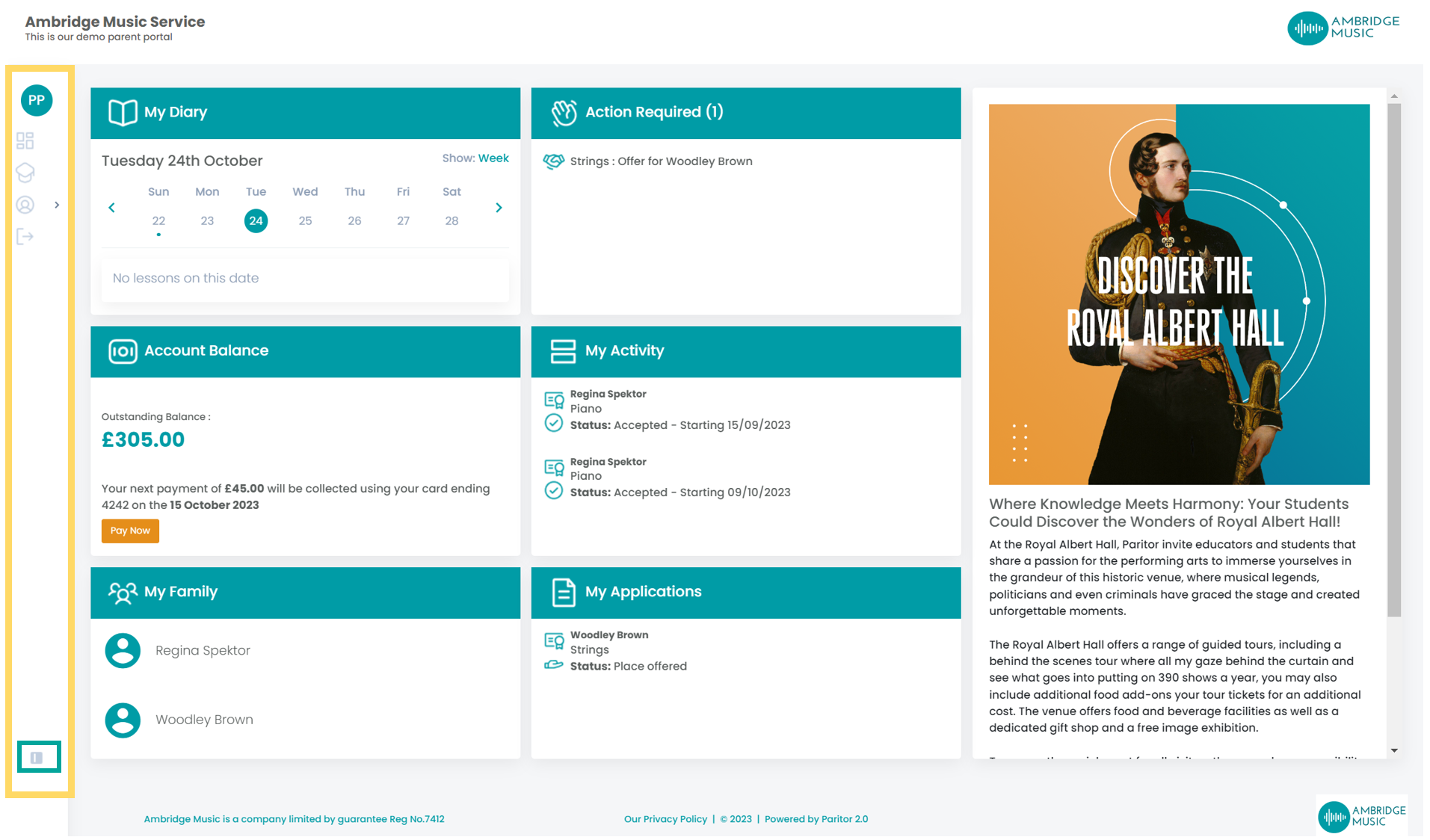
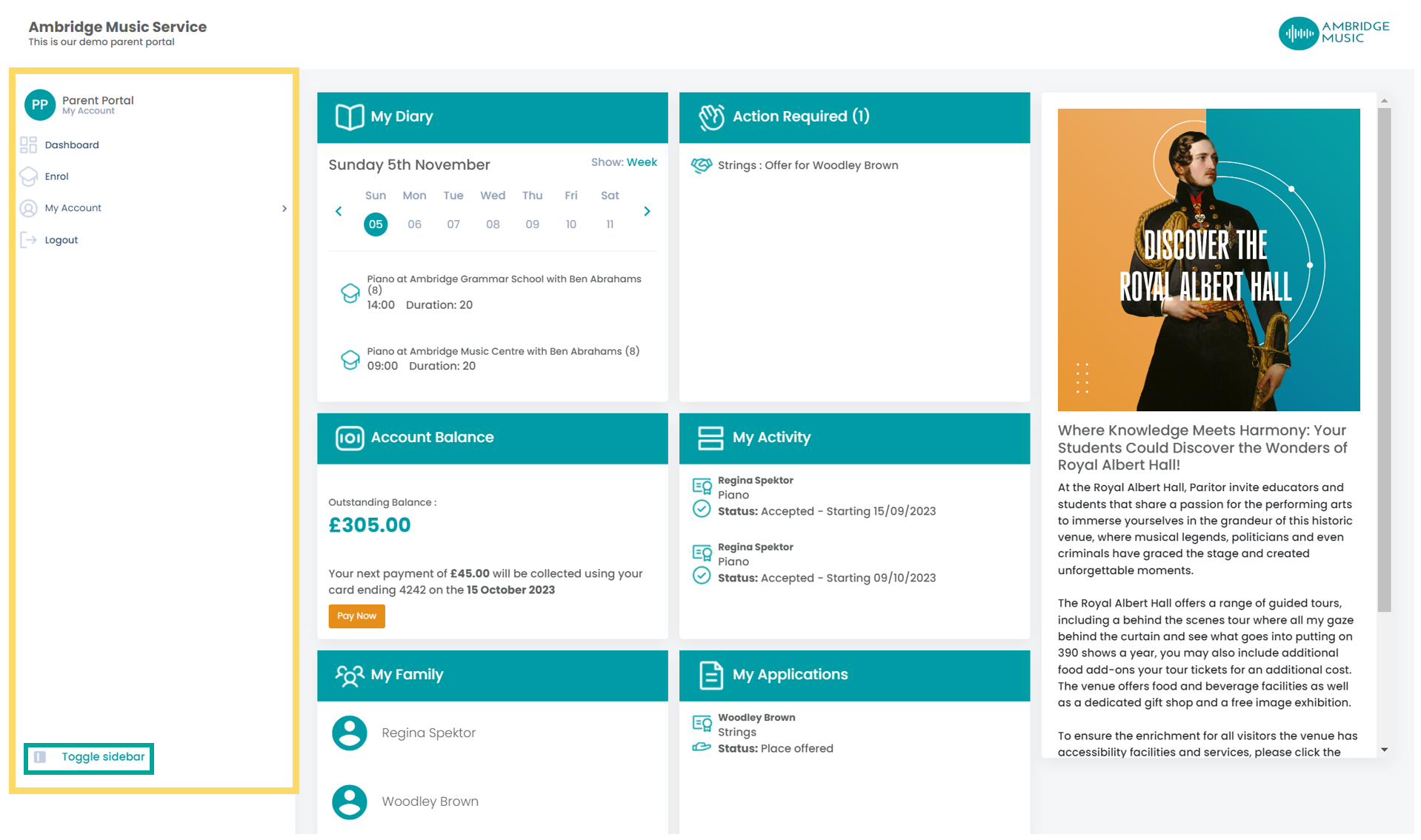
The screenshots below show the side menu (in the yellow box). The default view is with the menu minimised. Users can expand the menu view by selecting Toggle sidebar.
The default minimised menu
The menu with the sidebar toggled
What is on your menu
The menu is built from who you are and what your service runs, so two parents at different services will not see the same list. A missing item almost always means your service does not use that part of Xperios rather than that something is wrong.
| Item | Shown when |
|---|---|
| Dashboard | Always, once you are signed in |
| Place Order | Your service lets families choose from its catalogue |
| My Details | Always, once you are signed in |
| My Activities | You are a payer on the account |
| My Finance | You are a payer, and your service shows families their finances |
| Family Schedules | You are a payer on the account |
| My Consultations | Always |
| My Pupil Reports | You are a payer on the account |
| Messages | Always |
| Library | Always |
| What's On | Your service sells tickets |
| Coach registers | You are a chaperone on a coach route |
A teacher also gets Teaching, and anybody acting for a school or organisation gets a menu of its own instead of this one.
Switch service appears if you are connected to more than one service using Xperios — a family with children taught by two different music services, for instance. Your own details, sign-in and saved cards are under My Account, reached from the widget at the top of the page along with Sign out.