
Appearance
Pupil Assessment
The Pupil Assessment tab records how far each pupil in the lesson has got. Every pupil is listed with the level they are on now, and you change it from here.
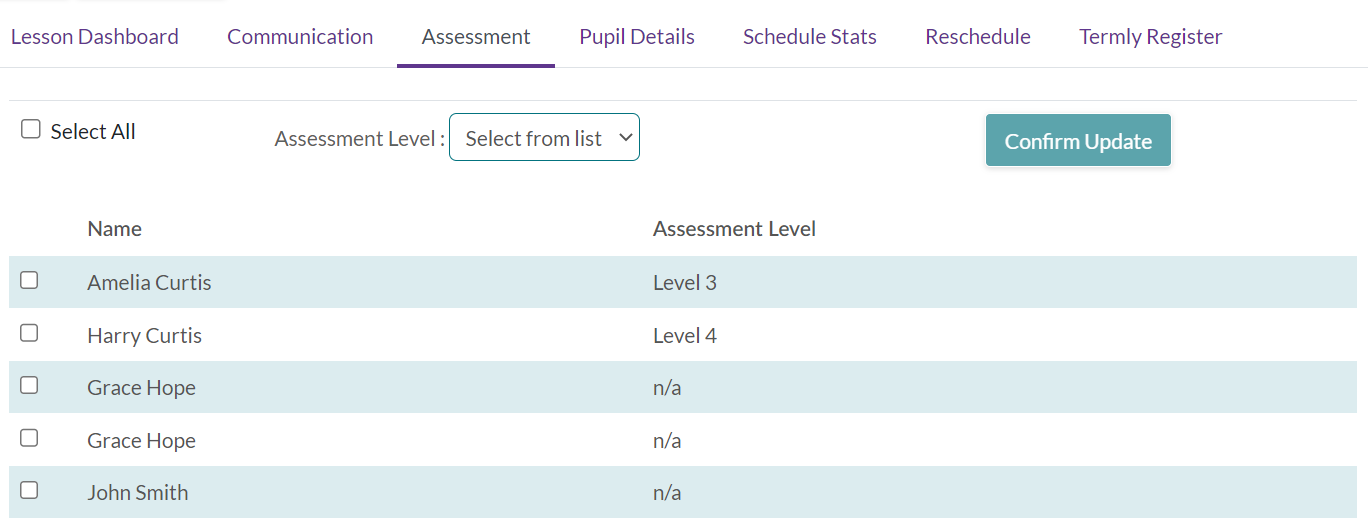
If the tab is not there
Pupil Assessment only appears where your service has set up assessment levels, and never on a one-to-one tuition lesson. If you expected it on a group lesson and it is missing, your service has no levels defined — that is a job for the office in Xperios.
Changing a level
Three steps, in this order:
- Choose the new Assessment Level.
- Tick the pupils it applies to — or Select all, if the whole group has moved up together.
- Confirm Update.
The button stays greyed out until you have both a level and at least one pupil ticked, which is the usual reason it looks broken: pick the level first.
What a level does afterwards
A level stays with the pupil from the lesson you set it in until you change it again. It is not a mark for that week — it is where the pupil has got to, so you only touch it when somebody has actually moved on. It shows against them on their pupil details.
It follows a pupil into next year
Change a tuition pupil's level and it is carried onto their progressed application — the record of them continuing next year. So the level you set now is the one next year's teacher starts from, which is a good reason to keep it current rather than catching up in June.
This is a different thing from the levels on a pupil's report. Those are chosen per technique from your service's Appraise settings when you write the report, and changing an assessment level here does not fill them in.