
Appearance
Teacher Pay
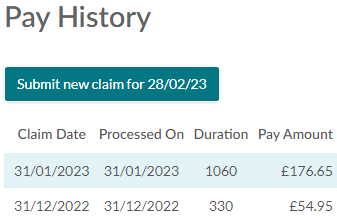
Where a teacher checks and submits a pay claim. It opens on their claims, newest first, and each one can be opened to see the period's breakdown.
Not every service uses it
Pay claims through the Portal are a choice your service makes. Where it is off, a teacher is told plainly that the service does not take pay claims through the Portal, and pay is handled another way.
Making a claim
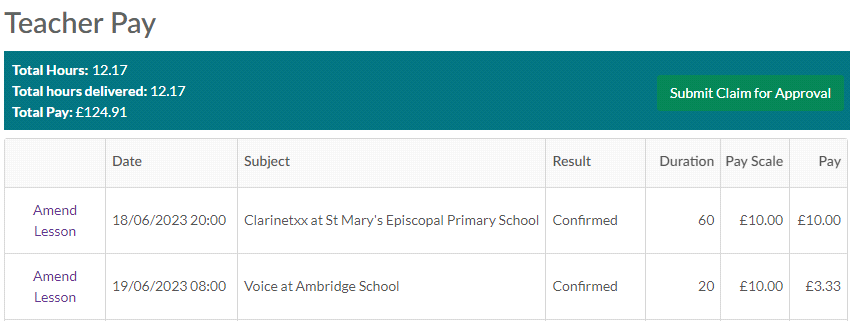
Submit new claim for {date} opens the draft for the current period: the lessons in it, what each would pay, and the task result recorded against each one — because the outcome is what decides whether a session pays at all. A lesson can be amended from that screen, so a missing or wrong outcome can be put right without leaving it. Then Submit Claim for Approval.
Why a claim will not submit
Four things stop it, and each says so in its own words rather than failing silently:
| What the teacher sees | What it means |
|---|---|
| "Please sign your contract before submitting a claim." | They have a contract waiting to be signed. It has to be signed first |
| "None of these lessons has an outcome that pays yet." | Nothing in the period has a task result that pays — there is nothing to claim |
| "Mark the registers of the lessons shown before submitting." | Where your service insists on register keys, a lesson in the draft still wants its register. The lessons needing it are listed |
| "The current pay claim period isn't set - please contact the office." | No claim period is set up, which is yours to fix rather than theirs |
The register one is the common call
A teacher who cannot submit and does not know why has usually left a register unmarked. The message names the lessons — it is worth asking them to read it rather than guessing, because the other three need quite different answers.
Changing a claim after submitting
A claim can be resubmitted right up until it is processed, so a teacher who spots a mistake does not have to ask for it to be sent back. An unsubmitted claim can also be deleted and started again.
What a teacher sees of the money
Two of your settings decide how much detail is on the claim. Whether the income and commission behind each line are shown is one, and whether travel is worked out from the distance on the lesson rather than entered is the other. Both are service-wide, so they look the same to every teacher.
What happens next, in Xperios
A submitted claim goes to your office, under Business Management > Teachers, where there are two lists:
- Teacher Pay - Approval — submitted claims, to view and accept, or reject with feedback that goes back to the teacher
- Teacher Pay - Processed — approved claims, exported to your payroll
See Teachers for that side of it.
See also
- A teacher's contract is not right — contracts, their weeks and hours, and the signing that blocks a claim
- Pupil missing from a register — the registers a claim waits on
- Teachers — approving and processing claims