
Appearance
Consultation Attendees
Consultation Attendees answers two questions about a consultation event: who has booked which slot, and who has not booked at all. It is a read-only view — putting slots up and cancelling them is on Create Consultation.
Where to find it: Teaching > Consultations > Consultation Attendees
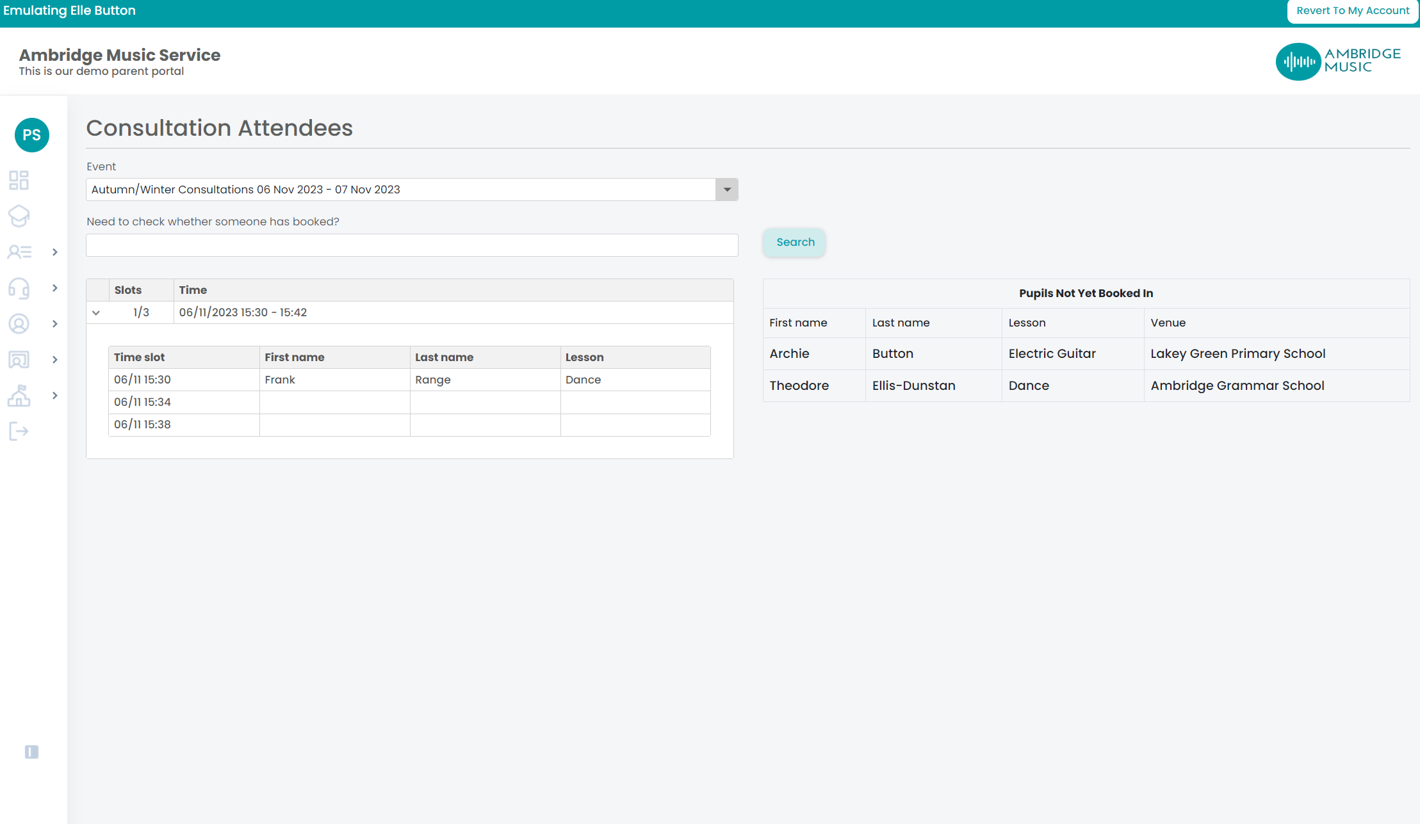
Choose the event at the top. If you have no consultations the page says so, and there is nothing to look at.
Who has booked
Your sessions are listed with their slots and times, and you can expand one to see the slots inside it — which are taken, and by whom. That is the quick way to tell whether an evening is full before you offer another.
Look for pupil searches by name, which is the faster route when a parent asks whether they are booked and for when. If the name is not found you are told no bookees found, which is itself the answer: they have not booked.
Who has not
Unbooked pupils lists, with their lesson and venue, the pupils of yours whose family has not booked a slot at all.
This is the list worth acting on
The booked slots look after themselves — those families have already made the effort. The unbooked list is the one that turns into a wasted evening, and it shrinks fastest if you mention it at the lesson rather than waiting. The lesson's Communication tab will reach a whole group at once.
Where a section shows no data available for this teacher there is nothing of yours in that part of the event — no sessions, or nobody unbooked.
On the day
When it is time for your consultations an action appears on your dashboard, and the session's own button changes from View to Open from fifteen minutes before it starts. Open is the live view, where you mark who came and add your notes.