
Appearance
Appraise
The next section of My Teaching is Appraise. This area holds the pupil reports you are the one to write — the tuition pupils you report on — for an open reporting period.
Choose the Reporting period at the top left; it opens on the first open one. Where you teach at more than one venue, the Venue list beside it narrows the list to a single school. Periods that have closed are not here — they move to Appraise History.
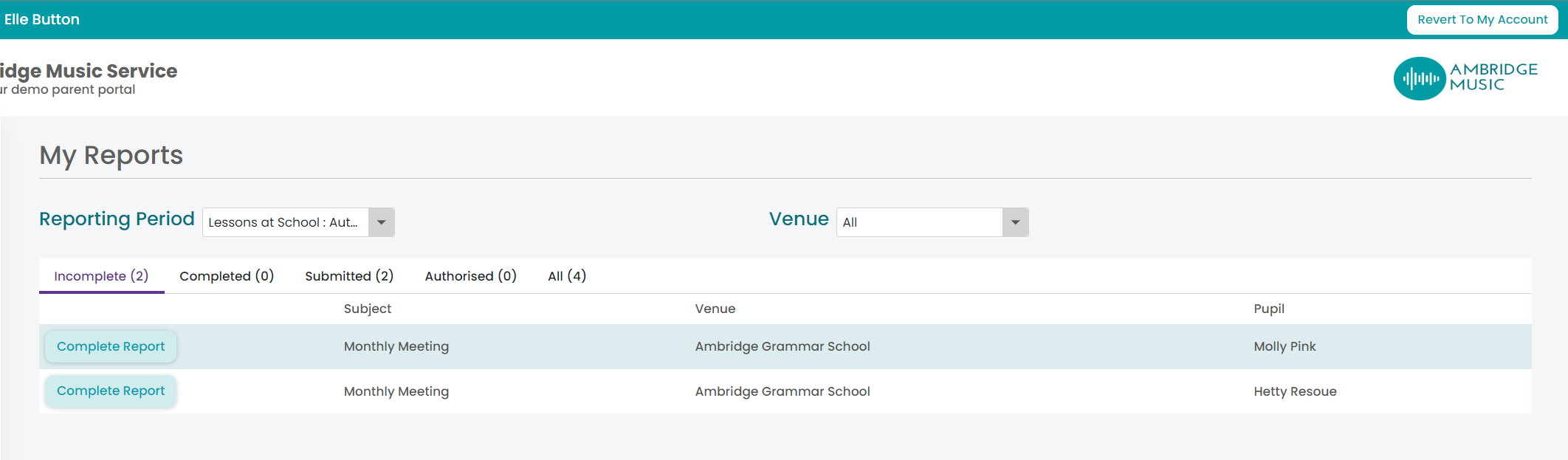
There are 5 tabs for your reports. These are:
Incomplete
Completed
Submitted
Authorised
All
Incomplete
These reports are incomplete. Teachers will need to click on the Complete Report option to complete the report.
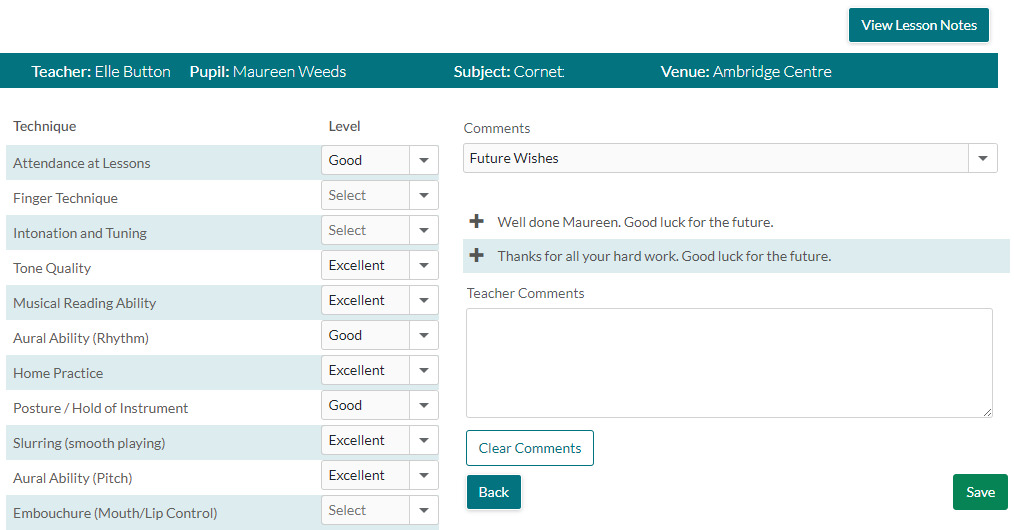
On the next screen teachers can select Levels, Techniques and Comments from the drop down menus. These will all relate to their specific subject and need to be set up first within Xperios. You can find out how to do this in the Appraise section here. from the drop downs for each of the the Techniques. Under the Comments, teachers can select the comment category from the drop down and select from a set of pre defined comments. Teachers can also enter their own comments in the the Teacher Comments field as well.
Teachers will need to click on Save at the bottom of the screen when finished.
Completed
Once a teacher has added the techniques and comments the report will appear here. These reports will need to be submitted to the Line Manager by the Teacher. This can be done by clicking Review Report and then Submit at the bottom of the report
Submitted
These reports have been submitted to the Line Manager and are awaiting authorisation or further comments.Teachers can still view the contents of these reports and if they wish recall them to make further edits (using the Recall button). Recalled reports will go back to the Completed tab.
Line Managers get an extra option under the Teaching menu called Manager Reports, which is where submitted reports are dealt with: read what the teacher wrote, amend the teacher comments for a typo, add manager comments, then Authorise and Publish, Return to Teacher with a note, or Recall one already authorised.
Authorising is not the same as a parent seeing it
A family can read a report only once it is authorised and its reporting period has been opened for publishing to parents — the second of which is set on the period in Xperios, not on the Portal. See Manager Reports for what that means in practice.
Authorised
These reports have been authorised. There is nothing further for the teacher to do with these reports.
All
This shows all the reports from all of the above tabs in one place, with a report status at the end for each report.