
Appearance
Register
The Register tab is the one you will use every week: what happened to the lesson, and who was there. It is in two halves — Session Details on the left for the lesson itself, Pupil Registration for the people in it.
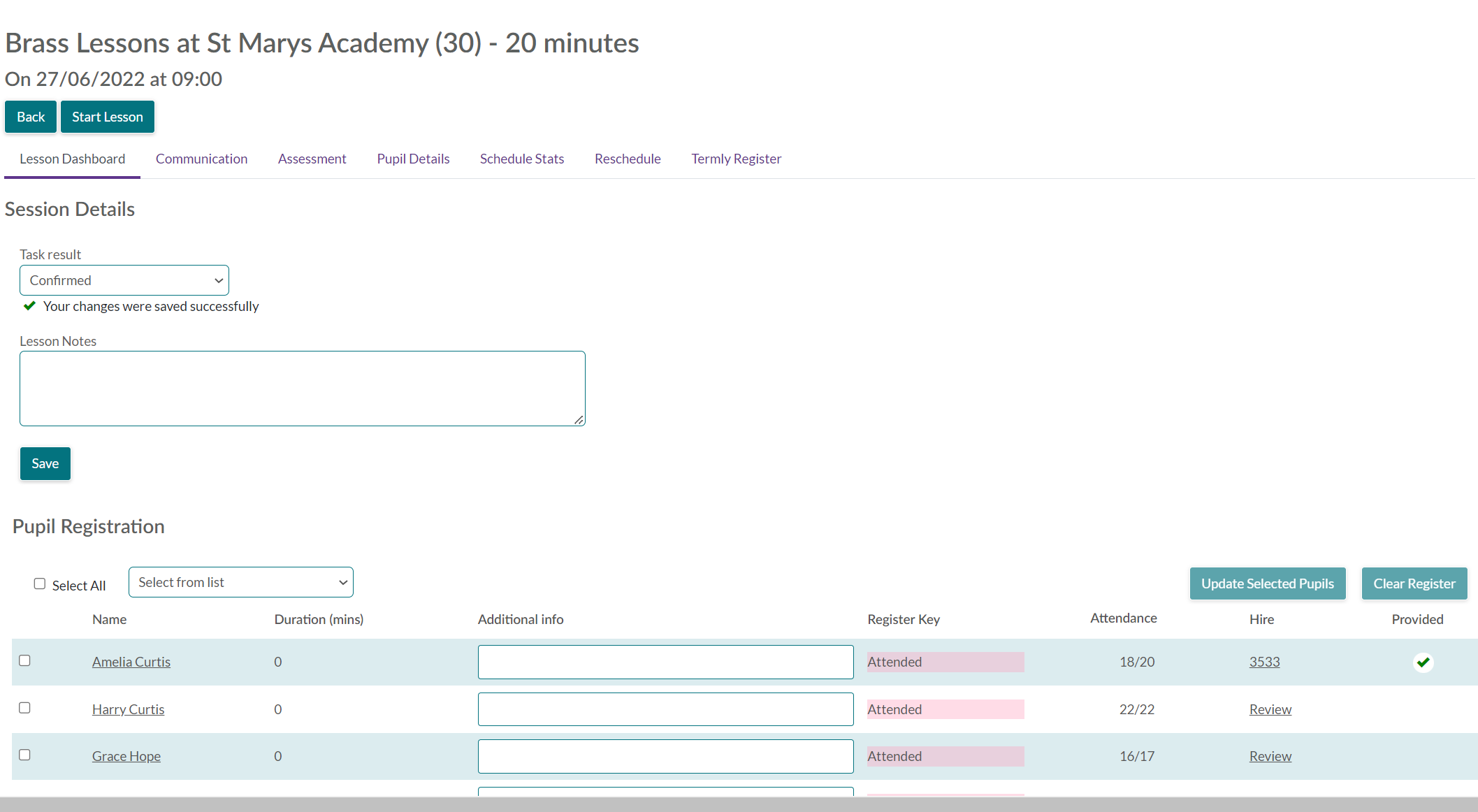
Session Details
Result is the lesson's task result — your answer to "did this lesson go ahead". It matters beyond the register: task results are what pay claims read, and what counts a session as delivered in Schedule Stats. The list of results, and which of them call for a make-up, is set up by your service.
Depending on the lesson and what you have already put, you may also see:
| Button | When it appears |
|---|---|
| Create make-up session | The result you chose calls for a make-up, and this lesson is not itself one |
| Remove task result | A result is set and the lesson has not been paid |
| Cancel make-up | This lesson is a make-up and no pay claim has been made for it |
Create make-up session asks for a date and a start time. The date can go back to the start of the lesson's academic year and forward a year from today, so a make-up already taught can be recorded after the event — see Sessions Require Make Up, which lists everything outstanding at once. This is also the way to move a lesson outside its own week, which Reschedule will not do.
Lesson notes are about this one lesson. They save when you click away from the box, and Save lesson notes does the same thing if you would rather be sure. Notes for a pupil rather than the lesson belong on pupil details.
Why the Result list is greyed out
Two things can lock it: your service may not allow the result to be changed once it is set, and the lesson may be closed to marking altogether — because it has been paid, made up, or belongs to an activity nobody has confirmed yet.
Pupil Registration
Everybody in the lesson is listed with their school year. Mark them in two steps: tick the pupils — or Select All — choose the Register Key, then Update Selection. Clear Register takes the marks off the ones you have ticked.
Working in bulk like this is deliberate: most weeks one key covers nearly everybody, so you select all, mark them present, then correct the two who were not.
Add Pupil appears where your service lets teachers add pupils themselves. It is a service setting rather than something about this lesson, so if you cannot see it, nobody teaching at your service can.
On a school-billed lesson with nobody in it yet, you are asked for the number of pupils instead. That is the estimate the school is billed on until real pupils are enrolled, so it is worth getting close rather than leaving it.
Taking a pupil off the lesson
What you can do depends on who is paying, which is the thing to get straight before you start.
A school-billed pupil you can finish yourself. Finish asks for a date and takes their lessons after it off the diary. It is refused if they are already finishing, if an instrument is still out with them, or if a lesson after that date already has a mark, outcome or credit — deal with those first.
Remove is narrower than it sounds, and only for a name added in error: it works on a school-billed pupil who has no contact record — somebody typed straight onto the lesson — and who has no lesson with a mark, outcome or credit. A pupil with a contact record can only be finished, and you are told so by name. When it does go through, the enrolment and its lessons go with it.
A parent-billed pupil is not yours to end. You ask the office: give a leave date, today or later, a reason from the list, and Additional Info — your own words about why. The enrolment becomes a requested cancellation, marked as requested by the teacher, and the office carries it out. The family is paying for those lessons, so stopping them is not the teacher's decision alone.
Your words are kept with the reason, so the office reads "Moving away (Requested by Teacher): family relocating at Easter" rather than a reason code on its own. The box was there but read-only for a while; it takes what you type again, and it is worth using, because it is what the office has to go on when they decide.