
Appearance
Diary
Diary is your week — the first thing on the Teaching menu, and where most teachers start. It opens on the current week, which you change from the options at the top left; the view itself (a Monday to Friday work week by default) changes from the top right.
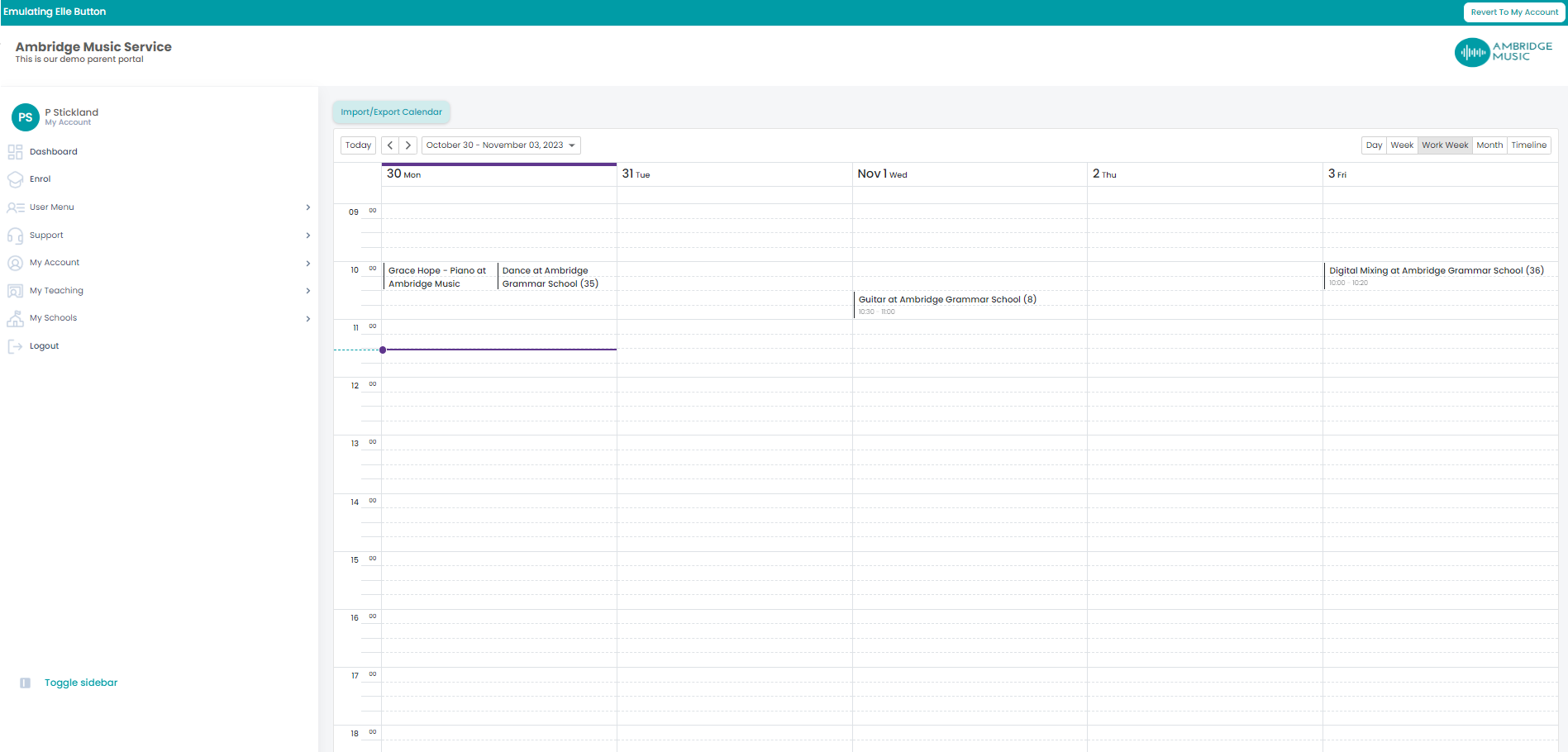
The appointment summary
A single click on a lesson opens its Appointment Summary: the activity, venue, teacher, date and time, with the service type and the kind of plan it is.
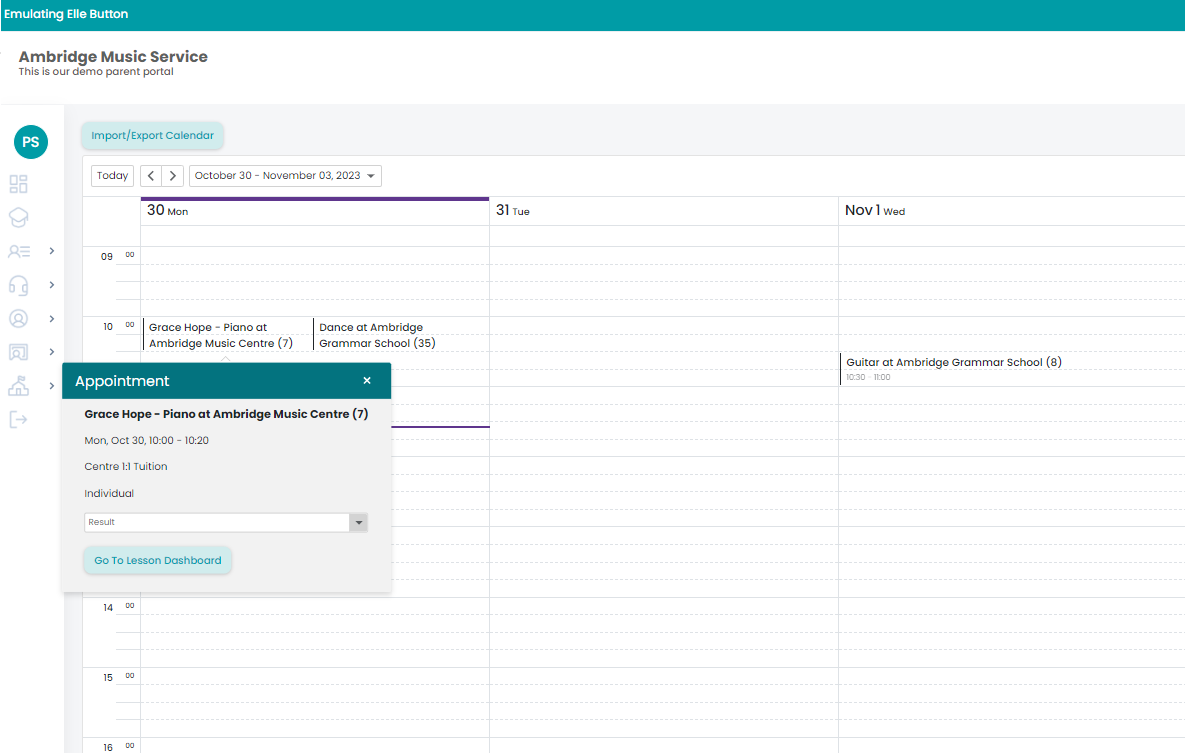
Three things on it are easy to miss and worth knowing:
- Status – Pending means the lesson's plan has not been confirmed yet. A pending lesson is not fully real: it will not appear on your Weekly Summary, and it cannot be marked.
- Includes n travel time — travel built into the appointment, so the slot is longer than the teaching.
- Includes n break time — time at the school either side of the lesson. It counts towards your contracted hours but is not teaching time and is not charged.
You can set the Result — the task result — straight from the summary without opening the lesson, which is the quickest way to mark a run of lessons. The list is disabled on a lesson that has been made up or paid, because those are settled. A lesson that has already been made up says so instead.
Go to Lesson Dashboard opens the lesson in full, for the register, notes, pupils and the rest.
Your calendar elsewhere
Where your service publishes teacher calendars, Export/Import Calendar lets you take your diary into your own calendar app, or point it at an external calendar feed so your Portal diary and your own stay in step. It is the way to have your teaching alongside everything else in your week rather than checking two places.
In this section
Where a lesson slot is shared by several pupils taking it in turn, the pattern is set out in a block timetable.