
Appearance
Waiting List
The Waiting List is where applications for your teaching arrive and where you move them along: look at who has applied, say whether you can take them, make the offer, and see what the family said.
Where to find it: Teaching > Pupil Management > Waiting List
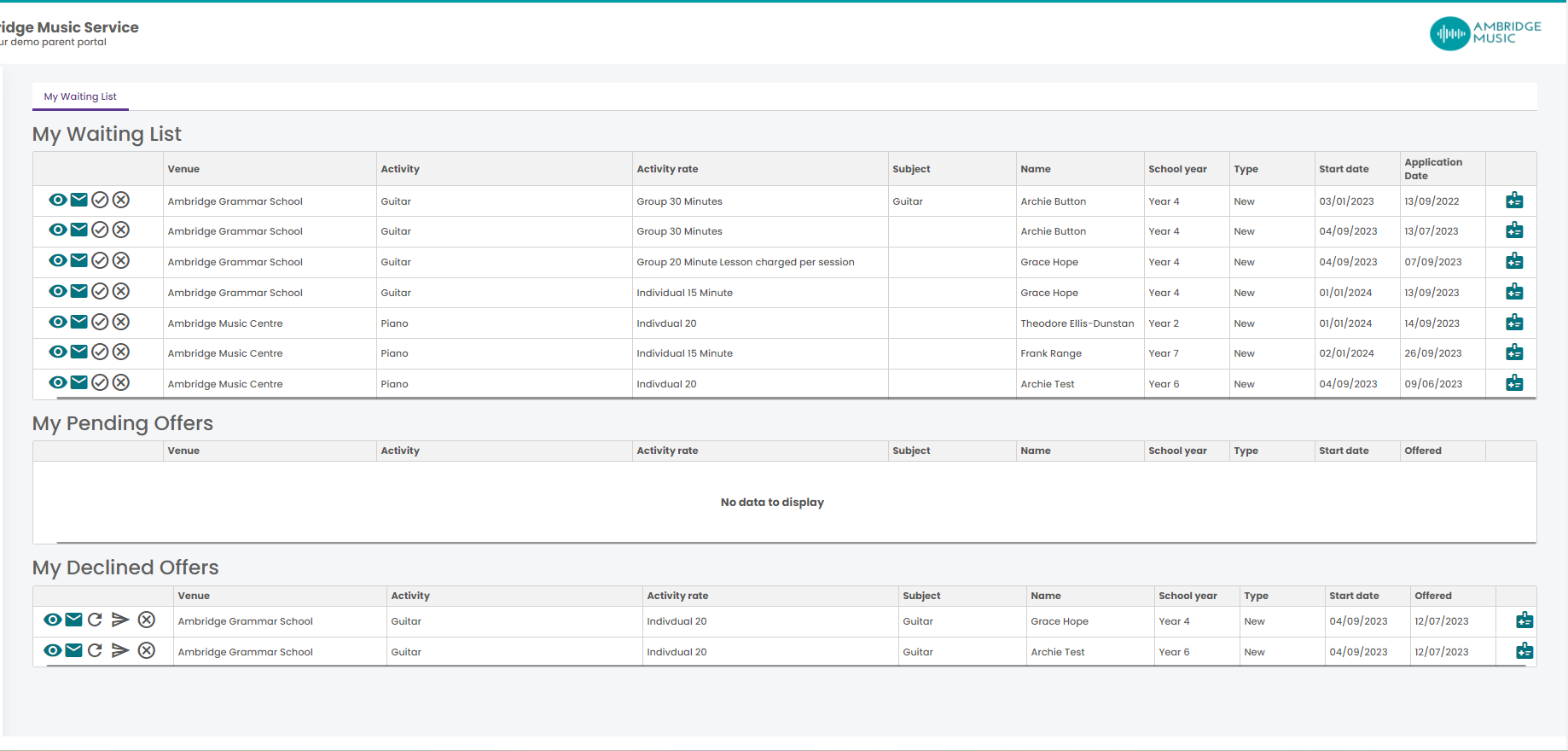
The five sections
An application works its way down this list, and each section is a stage:
| Section | What is in it |
|---|---|
| Waiting List | Applications that have arrived and had nothing done to them |
| Under Consideration | Ones you have flagged as you thinking about it |
| Teacher Accepted | Ones you have said yes to, with a start date — but no offer sent yet |
| Pending Offers | Offers sent, waiting on the family |
| Declined Offers | Offers the family turned down, or that ran out of time |
Under Consideration and Teacher Accepted are the two worth using deliberately. They are how the office can see that an application is in hand rather than ignored, and how you can put something aside without losing it.
Line managers get a second tab, Managed Waiting List, with the same five sections for the teachers they manage.
What each row tells you
Teacher, Offered, Application date, Venue, Activity, Activity rate, Subject, Name, School year, Type and Start date.
Type is the one people miss. A new application came from a parent applying. A Progressed one came out of the progression run, where somebody asked to change what or how they study — those go back to a waiting state precisely so you can check that what they asked for is possible.
The row icons
| Icon | What it does |
|---|---|
| View | The applicant's details: age, school year, subject, current level, duration, preferred start date and when they applied |
| Send email | Message the applicant about their application, with attachments if you need them |
| Considering | Move the row to Under Consideration |
| Accept | Say yes — see below |
| Reject | Turn it down, with a reason |
| Revoke | Pull back an offer already sent |
| Medical information | The applicant's medical and disability notes |
| Assign to teacher | Hand the application to a different teacher |
If Accept is greyed out and says "debtor held"
The payer's account is on hold, so the application cannot be accepted by anybody until that is dealt with. It is not something you can clear from here — tell the office, and leave the row where it is.
Medical information is worth opening before you accept rather than after. Both the medical and the disability notes are there, and either may change where or how you can teach somebody.
Saying yes
There are two steps, and they are separate on purpose.
Accept records that you will take the pupil: a start date, the activity plan type and any notes. The row moves to Teacher Accepted. Nothing has gone to the family yet, so this is the safe thing to do when you know you want somebody but the lesson is not settled.
Making the offer is what reaches the family:
- Select subject — what they will study.
- Lesson name — which lesson they join. By default only lessons you teach; tick Show all lessons for the full list.
- Pricing options — defaults to what the applicant chose when they applied, and you can change it. If they asked to hire an instrument you can accept that here too, which puts them on the resources required list rather than assigning a particular instrument.
- Offer details — anything you want to tell them.
- Start date — when the tuition begins.
The offer is checked before it is sent. If it cannot go you are told why, so a refusal comes with an explanation rather than being a dead end.
If the offer saves but reports email problems
The offer has been made — it is the notification that struggled, usually because of the address held for the family. Do not send it again. Tell the office so they can reach them another way.
Cancelling, and what it means now
Cancelling a row that has not been offered yet — waiting, under consideration or teacher accepted — is a rejection, and it asks for a reason. It no longer puts the row back on the waiting list, which is what it used to do.
Whether a rejection cancels the application outright or only takes it off your list depends on your service's settings. If you want somebody kept for later, use Considering rather than cancelling them.
Pending and Declined Offers
Both sections give you the same handful of actions: view the offer, send a secure message, revoke it, send it again with a fresh notification, or cancel the application.
A declined offer is one the family turned down — or one that timed out, because an offer left unanswered for the period set on the service type declines itself. So a row here does not necessarily mean somebody said no; it may mean nobody said anything. That is usually worth a message before you give the place away.