
Appearance
Organisation
How Xperios is set up for your organisation — who you are, how you are structured, who may do what, and the wording of the messages sent on your behalf.
System Configuration — the settings that shape the whole product: what you collect about pupils, which modules you use, how you invoice, how emails are sent. The largest screen in Xperios, and the one most worth going through deliberately when you start.
Portal Parameters — what applicants see on your Portal: the wording, the logos, your privacy and medical text, and which questions are asked.
External Pupil Database — the link to a pupil database you hold elsewhere, so records can be brought in rather than typed twice.
Areas — the geographic areas your schools sit in. Optional, and only shown if you have turned Areas on in System Configuration.
Departments — divisions within your organisation, used on service types to keep the different parts of your business apart. Optional, and only shown if turned on in System Configuration.
Paritor Forms — additional forms you can ask applicants to complete, beyond the standard questions.
User Groups
Who may do what.
A group holds a list of rights. Each right names one function of Xperios and grants up to three things against it — read, write and execute — so access is graded rather than all or nothing. Somebody can be allowed to see invoices without raising them, or to raise them without running the collection.
People are then put into groups, which is what makes this manageable: access is decided by role once, rather than person by person each time somebody joins.
These rights are enforced where the work happens, not merely used to decide what appears on the menu. Somebody without Write on a screen cannot save a record there even if they reach it another way, and Execute is what lets somebody act on a tool screen rather than only look at it.
An administrator is not tested against groups
Somebody flagged as an administrator passes every check regardless of the groups they are in, so adding a group to an administrator changes nothing. Test permissions with an ordinary account.
Message Content Templates
The wording of the messages Xperios sends, held as templates so it is written once and used repeatedly.
Xperios sends well over a hundred distinct messages, and each template is tied to the particular one it supplies the wording for — a tuition offer, a failed payment, a hire reminder, an SLA sent for review. They are grouped into categories (Tuition, Finance, Hires, Auditions, Marketing and the rest) so the one you want can be found.
What a template overrides
A template says what it is replacing:
| Override System | Replace the standard wording everywhere |
| Override Service Type | Replace it for one service type only |
That is what lets a single message read differently for different parts of your service. The adult evening-class offer and the primary-school offer are the same message with two templates, rather than one compromise that suits neither.
Templates can be shared, and carry substitution tags — the placeholders that are swapped for real values when the message goes out, so the pupil's name and the amount due come from the record rather than being typed.
Override Standard Email Content is the same mechanism approached from the other end: it lists the emails Xperios sends automatically so you can replace the standard wording of any of them.
Archiving and anonymising automatically
Xperios can clear out people who have stopped having anything to do with you — archiving them, and eventually removing their personal details altogether. Three settings on System Configuration control it, and all three are off until you set them.
| Archive After (Years Inactive) | Archive anyone with no activity for this many years. Reversible |
| Anonymise After (Years Inactive) | Remove their name, contact details and personal information. Not reversible |
| Process Automatically | Off, the weekly run only reports. On, it carries the changes out |
0 means off for either period, which is how both start.
What counts as inactive
Activity is read across the whole family, not just the person in front of you. A parent with nothing of their own is still active while a child of theirs is being taught, so a contact falls due only once the whole household has gone quiet for the number of years you set.
All of this counts:
- their own places and bookings
- the places and bookings of every pupil they are Contact 1 or 2 for
- anything they pay for, and their invoices and payments
- signing in to the Portal
- teaching — a current teacher counts as active today
- a current link to an organisation
- the date the contact was created
A current or waiting place counts as today, not as the date it started. And because creation counts, somebody added last week and not yet used is never swept up by this — which is what you would want, but is worth knowing before you go looking for them on the report.
Nobody is removed without warning
Even with Process Automatically on, a person must have appeared on the report as due for at least seven days before anything happens to them. The weekly run keeps them on the list in the meantime.
That is the safeguard worth understanding: the list is your chance to object before a record changes, and anonymising cannot be undone afterwards.
The log, and reading it between runs
Every run writes to the Archive and Anonymise log, each row with an outcome:
| Would be done | Due, and reported only — either because Process Automatically is off, or because the seven days have not passed |
| Done | Archived or anonymised |
| Skipped | Due, but held back, with the reason |
Each run replaces its would-be-done and skipped rows and keeps the done ones. So the report is always a picture of where things stand now, while the history of what was actually carried out builds up and stays.
A dashboard tile shows who is on notice, who is due at the next run, and who is being held back — see Dashboards.
This run is about people who have drifted away. To erase one particular person because they have asked you to, use Anonymise on their contact instead: it does not depend on these settings at all, though the removal itself is identical.
Who is never touched, and who is held back
Organisations, staff users and anyone already anonymised are never processed at all.
Beyond that, somebody due is held back, with the reason recorded, while any of these is true:
- they owe you money, or you owe them
- they have a payment schedule that is live or on hold
- they still have equipment out
Those are the cases where removing somebody would lose you something you need, so the run declines rather than forcing it.
Start with it reporting
Leave Process Automatically off for the first few weeks and read the list. It costs nothing, and it is the only way to find out whether your idea of "inactive" matches what the run actually finds before anything is anonymised.
Getting Started
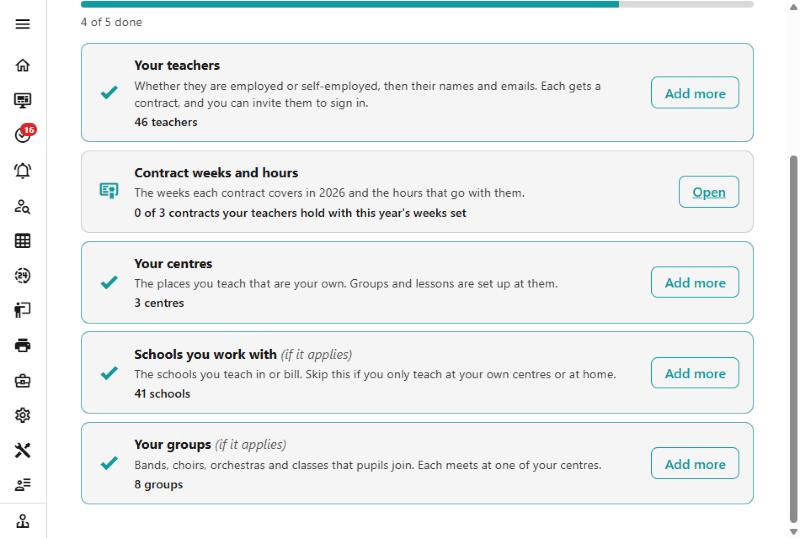
A new service arrives with its settings and lists already in place — service types, charges, lookups, the lot. What it does not have is your own people and places. Getting Started is the list of those, with a short wizard behind most of them.
It shows how far you have got, and a step counts as done as soon as there is one of its kind — however it was added. Set a centre up by hand and the centres step ticks itself. So it is a checklist of what exists, not a record of which buttons you pressed, and nothing is lost by doing a step the long way.
The steps, in the order they are best done
| Step | What it is for |
|---|---|
| Your teachers | Whether they are employed or self-employed, then their names and emails. Each gets a contract, and you can invite them to sign in |
| Contract weeks and hours | The weeks each contract covers this year, and the hours that go with them |
| Your centres | The places you teach that are your own. Groups and lessons are set up at them |
| Schools you work with | The schools you teach in or bill. Skip it if you only teach at your own centres or at home |
| Your groups | Bands, choirs, orchestras and classes that pupils join. Each meets at one of your centres |
The order is not arbitrary. Centres come before groups, because a group meets at one; teachers come before their contracts’ hours, because there are no contracts to set hours on until the teachers hold them. The last two are marked if it applies — plenty of services never teach in a school, and the groups step is not shown at all unless you have the Groups module.
Contract weeks and hours counts only what is actually held
It asks about the contracts your teachers hold, not every contract type in the lists you were set up with. A service whose teachers are all on one contract has one to fill in, however many types exist. This step has no wizard — it opens the Teaching Contracts page, where the weeks and hours live.
How the wizards work
All four follow the same shape: a few questions, then a short list you type or paste in, then a summary of what is about to be done before anything is. The summary afterwards says how many were added and which were already there.
You can run one again
Anything already in Xperios is passed over rather than duplicated, so a wizard is safe to run a second time to add the people or places you have since thought of. It is not a one-off you have to get right in a single sitting.
What each one asks:
- Your teachers — whether they are employed, self-employed or some of each, which decides the contract each is given. The contract type is created if you have none, with this year’s weeks set on it. Then names and email addresses, one per line and pasteable straight from a spreadsheet, and finally whether to invite them to sign in.
- Your centres — names and addresses.
- Schools you work with — one school type for the whole list, which you can change on any of them afterwards, then names, towns, postcodes and DfE numbers.
- Your groups — names, the centre each meets at, what kind of group each is (where you have Group Types) and its genre where you use genres. They are created on your Group Membership service type.
None of this is the only way in. Every one of these things can be added on its own screen at any time, with more detail than a wizard asks for — Getting Started is there to get a service working quickly, not to replace the screens.
Brand
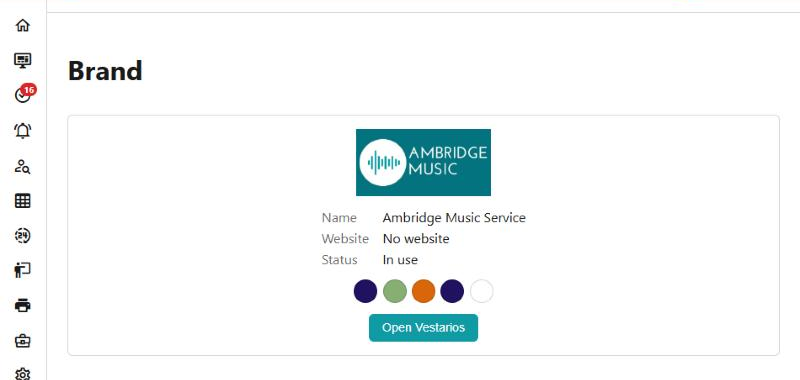
Your logo, your colours and your approved images are all looked after in Vestarios, which is the one place they live. Settings > Brand is the view of them from inside Xperios: the logo, the name, the website, whether the brand is in use, and the colours it is built from.
Open Vestarios takes you there to change any of it. You are put straight onto your own account with the role your Xperios rights give you, so there is no second sign-in to keep track of. Reaching Brand at all takes the same right as System Configuration.
The brand also carries the email parts — the header, colours, footer, contact details, social links and signature every email uses. They are shown on Settings > System Configuration > Comms and changed in Vestarios: see How your emails look.
A picture you choose is copied, not linked
When you pick one of your approved images for a record — an event, a ticketed concert, a prospectus item — Xperios takes its own copy at the size that record needs. Changing or replacing that image in Vestarios afterwards does not change the copies already taken. Where a picture is wrong in several places, it has to be picked again in each of them.
Paritor Credits
Not the same word as a credit on an account
A credit elsewhere in Xperios is money off a debtor’s invoice. Paritor Credits are something else entirely — what your organisation holds with Paritor to pay for the software and the services it uses. Nothing on this page touches anybody’s account.
The page comes in sections, and what you see depends on what your organisation uses:
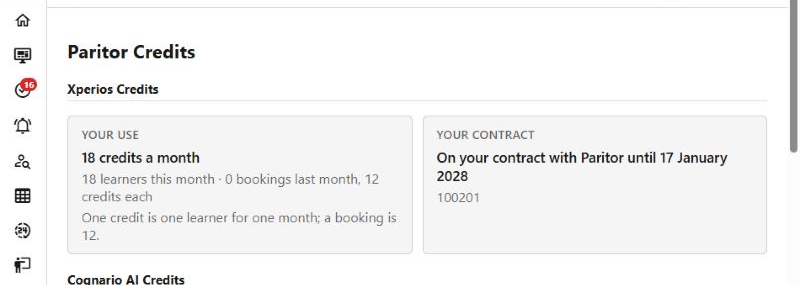
- Xperios Credits — what your use of Xperios comes to each month, counted from your own data, beside the contract you are on. The screen says how it is counted, in its own words, so the figures and the explanation always agree.
- Cognario AI Credits — what is left to spend on AI, with your free monthly allowance shown separately. The allowance is used first, renews each month and does not carry over; credits you buy work in every Paritor product and never expire.
- SMS and Email — the same idea for messages you send.
Where credits can be bought, the packs on sale are listed with their prices on the page itself. They are not repeated here, because the page is always right and a help page would not be.
Who can see it, and who can buy
Seeing the page takes the same right as System Configuration, so anybody who looks after settings can check where you stand.
Buying is narrower, on purpose. Only your organisation’s own administrators can buy credits or change what you are on — not somebody on a Manager licence, and not Paritor’s own support staff, because it is your money. If the buttons are missing, that is the reason.
If the page says your organisation is not linked to Paritor Credits yet, ask us and we will connect it.
What happens if Xperios credits run out
Only an organisation that pays for Xperios credits by card is affected. One on a traditional contract, or invoiced, never is.
When the balance reaches zero you keep full use of Xperios for 14 days. After that it goes offline until credits are bought, and what you used during the 14 days comes off that purchase. Buying brings you straight back — there is nothing to wait for and nobody to ring.
Offline is not switched off
While an organisation is offline, staff, parents and teachers get a short message instead of the app, and scheduled jobs and outgoing messages stop. But administrators can still buy, payments coming in are still recorded, your database stays online and nothing is deleted. It is a pause, not an ending.
The AI key
System Configuration → Connect carries your AI key. Everything in Xperios that uses AI is billed to it: the AI button on the top bar, the name translations on Subjects and Charges, and the help desk's drafting on an issue.
The screen only ever tells you whether a key is set — never what it is. To change it, type the new key in; leave it blank and the one you have stays. To take AI away altogether, use Remove, which is the only thing that clears it.
Nothing AI-related appears without it
With no key, the AI button is not on the top bar and the translation buttons are not on their screens. If somebody reports those as missing, this is the first thing to look at.
Dashboard Items
A Dashboard Item is one tile — a number, a chart, a small table — that dashboards are built from. Each one is made from a query, which is what decides the figure it shows.
This screen is the list of them: rename one, change its description, or delete one you no longer want. You build them on the query itself, not here.
Previewing a Paritor Form
A form is only as good as it reads to the person filling it in, and on the Portal that is not quite how it looks here. Preview Form on a Paritor Form shows it as the Portal will.
Worth doing before you attach a form to an activity — a question that made sense while you were writing it often needs a word changing once you see it as an applicant does.