
Appearance
Creating and managing dashboards
Each user has their own list of dashboards. One is marked as your primary dashboard and opens automatically.
Moving between them

Your first few dashboards sit along the top as buttons, your primary one first — three of them, or five on a wide screen. Beyond that, N more opens the rest in a menu, and Manage is where you add and remove them. On a phone they all stay in the menu, which is labelled so it is clear what it switches.
Going back to a dashboard you have just had open shows its figures as they were, without re-running every query, for about five minutes. So moving between two dashboards to compare them is quick, and does not put the same questions to the database over and over. Past that, or with Refresh, it asks again.
Creating a dashboard
The first time you open Dashboards, Xperios offers you a ready-made set — one dashboard for each part of your business, carrying the same figures as the weekly Business Report and kept up to date by us.
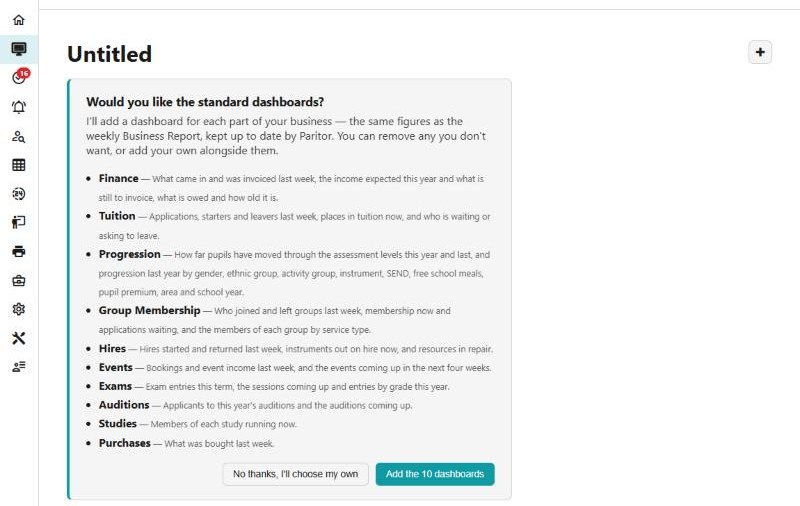
Each is described before you decide, so you can see what you are getting. In full the set runs Finance, Tuition, Progression, Group Membership, Hires, Events, Exams, Auditions, Studies and Purchases — but you are only offered the ones your modules switch on, so a service that does not run Exams is not offered an Exams dashboard. The button names however many you are being offered, and No thanks, I'll choose my own starts you empty.
The set grows
The offer is built from the Business Report's own sections, so a new section becomes a new dashboard on offer. Progression joined it in November 2026. If you took the set before a new one appeared, + Add Existing (below) picks it up.
Taking the lot costs nothing: you can remove any you do not want, and add your own alongside them. After that, + Add Existing adds more.
+ New Dashboard, which creates one from scratch, is only on Paritor's own database for now — customers do not make their own dashboards or Dashboard Items while the features are still changing.
Using someone else's dashboard
+ Add Existing searches for a dashboard someone else has already built — typically an organisation-wide shared one — and adds it to your own tab list, without you having to build it yourself.
Removing a dashboard from your tabs only affects you. It does not delete it for anyone else.
Read-only dashboards
A dashboard that belongs to a different organisation's shared or Master copy is read-only. You cannot add, move, resize, or rename anything on it.
The standard ten are ours, so each one says so under its heading — Master dashboard — read-only here — and that is the line to look for when a tile cannot be moved. It is not a rights problem and not a fault: it is a dashboard we keep up to date for everybody. Put your own tiles on a dashboard of your own beside it.