
Appearance
Contacts
Everyone your service deals with is a contact — pupils, parents, teachers, schools, centres, and the people who repair your instruments. They all live in one place rather than in separate lists.
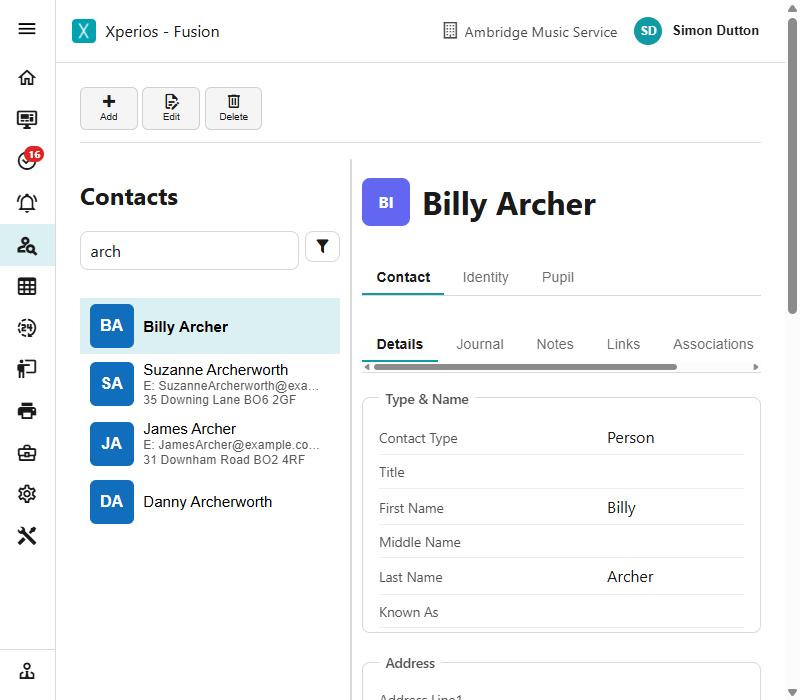
A contact can be several things at once. The same person may be the pupil having lessons and the payer being invoiced for them, and their record carries a tab for each role they hold.
Finding someone
The Contact menu opens the contact list. Type into the filter to search, and click a row to open the record.
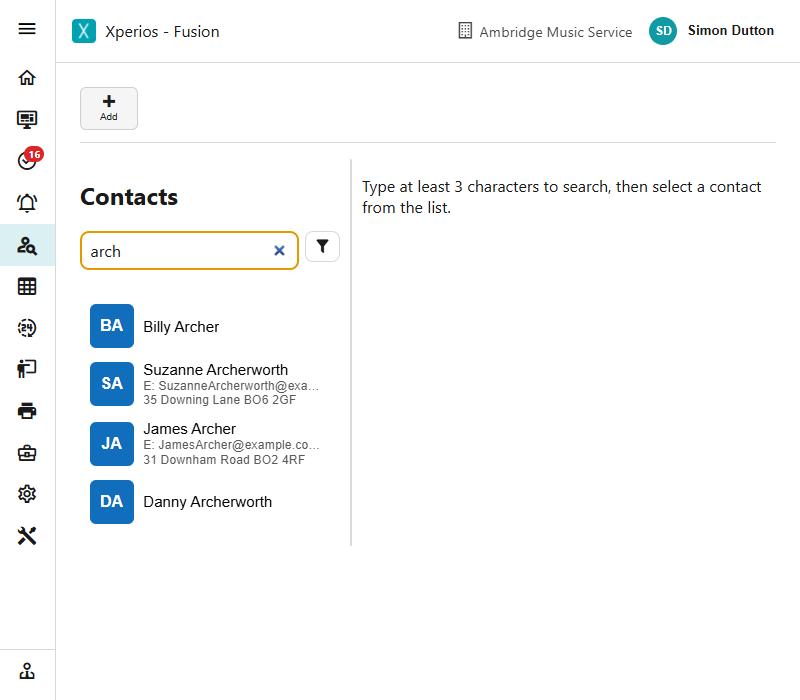
Type at least three characters — the list stays empty until you do, because there are too many contacts to list them all.
How a contact record is laid out
Two strips of tabs, one above the other.
The outer strip is the roles this contact holds. It always starts with Contact — the details that are true of them whoever they are — followed by one tab for each role: Pupil, Teacher, Debtor, School, Centre, Booker, Repairer, User, Customer.
You only see the roles this contact actually has. Somebody who is only a pupil has a Pupil tab and no Teacher tab.
Identity is the exception: it is always there, because anybody can have a sign-in regardless of what else they are to you.
The inner strip, on the Contact tab, holds the things that apply to the person rather than to any one role:
| Tab | What is on it |
|---|---|
| Details | Name, addresses, phone numbers, email |
| Journal | The history of contact with this person — calls, emails, notes of what was said |
| Notes | Free notes held against the record |
| Links | Documents and web links attached to the record |
| Associations | How this contact relates to others — parent of, works at |
| Consent | What they have agreed to be contacted about |
Editing
One Edit button at the top covers the whole record, not one per tab. Put the record into edit mode, change whatever you need across any of the tabs, and save once.
If you try to leave with unsaved changes, Xperios asks before discarding them.
You only see the roles somebody has
A contact carries a tab for each role they hold and no others, so the strip tells you at a glance what this person is to you.
Identity
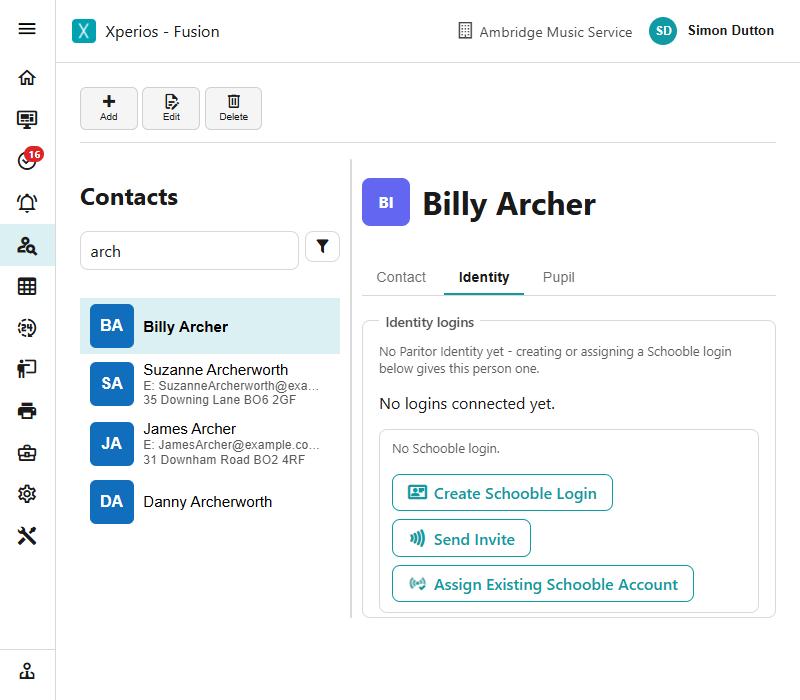
The Identity tab is how somebody signs in — their Paritor Identity, and every login connected to it.
One person has one Identity however many roles they hold, so a teacher who is also a parent signs in once and sees both.
The login's email is not the contact's email
These are two separate things, and confusing them is the one mistake worth guarding against here.
The address on the contact is where you send them post. The address on the login is what they type to sign in. Changing one does not change the other, so a person who has given you a new email address goes on signing in with the old one until somebody changes the login as well. A login showing an address that no longer matches the contact is completely normal, and it is still their login.
So check the name on the login, not the address. If the login's name is this person, it is theirs, whatever address it carries.
When they already have a login
The tab lists the logins on the Identity and offers:
| Reset Password | Send them through a password reset |
| Reset MFA | Clear their multi-factor setup, so they can enrol again |
| Rename Login | Change the email address they sign in with |
| Unassign | Disconnect the login from this contact |
Unassign takes their access away immediately
Use it only when the login genuinely belongs to a different person — another parent, a former payer, a sibling's account. The moment you unassign it, that person can no longer reach this contact's records, and if it was their own login they cannot sign in at all until a new one is set up.
An old or unexpected email address on a login is not a reason to unassign it. Check whose name is on the login first.
What Unassign actually does: the contact lets go of the Identity. The Identity and its logins are not deleted, so it can be assigned to the right contact afterwards. What it stops is that login reaching this contact's records.
They have changed their email address
Update the contact's own email as usual — that moves their post, and nothing else. Then decide what should happen to the sign-in:
- Leave it alone if they are happy to keep signing in with the old address. It goes on working; only the address they receive mail at has changed.
- Rename Login to move the sign-in to the new address. They keep the same Identity and the same password.
- Send Invite to the new address if you would rather they set a new login up themselves. Until they accept it, the old login is still the one that works.
Do not use Unassign for any of these. It is not a change-of-address tool, and on somebody's own login it will lock them out.
When they have none
The tab offers Create Schooble Login, Send Invite so they set it up themselves, or Assign Existing Schooble Account by its email address.
Whichever you use, it gives the person a Paritor Identity if they have not got one — the tab says as much while they have none.
Send Invite is usually the one to reach for: the person chooses their own password and you never handle it.
Connected mail accounts are managed by their owner
They are not shown here. Each user sees and manages their own under Maintain Accounts on the user menu.
Getting in touch from the record
A contact's toolbar offers only the ways you can actually reach this person:
| Send Email | Only where an email address is held |
| Send SMS | Only where a mobile number is held — either of the two |
| Send Secure Message | Only where they have a sign-in, because the message lands in their account |
| Add Journal Entry | Always, for recording contact made some other way |
So a button that is missing is telling you something: no email address on the record, no mobile, or no sign-in yet. Add the detail and the button appears.
None of the four is offered on an archived contact. Archiving says you have finished dealing with somebody, so the record is there to read rather than to write to or send from.
Erasing somebody at their request
Where somebody asks for their data to be erased, Anonymise… on their toolbar is how it is done — see Anonymising a contact. It waits seven days so it can be stopped, and it cannot be undone afterwards.
Giving somebody a role
A contact starts with no roles at all, and a role tab appears only once the role exists. Edit the contact and the toolbar offers to make them what they need to be — Make Teacher, Make Pupil, Make Debtor and the rest.
The role is created straight away, the record reloads with its new tab open, and you stay in edit mode to fill it in.
Not every role suits every contact:
| User, Teacher, Pupil | A person |
| Debtor | A person, or a school |
| School, Centre | An organisation — never both, and a Centre only where there is no other role |
| Repairer | Anyone |
Make School asks for the school type before it saves, because a school cannot exist without one. A school is made a debtor at the same time, since it is going to be billed.
Save first
The roles are offered only when there is nothing unsaved. The contact also needs a name, and cannot be archived.
Sensible starting points
A new teacher starts today. A new debtor is created Normal rather than closed, and takes the contact's own Free School Meals where they are a pupil.