
Appearance
Ticket Sales
Concerts and shows sold by the ticket. You set up the event, the nights it runs, where people sit and what each seat costs; buyers pay when they buy; and you get a door list of who is coming.
Where to find it: Services > Tuition > Ticket Sales
This is a module
Ticket Sales is one of the Xperios modules, so the menu item only appears if your service has it. If you want it and cannot see it, ask us.
It is deliberately not the same thing as an Event. An event is something people apply for — offers, a waiting list, evidence, instalments. A ticketed concert is a straight purchase: choose, pay, done. The two keep their own records and their own menu entries for that reason.
How it is put together
| Event | The show — "Ambridge Winter Concert". One venue, one set of areas and prices, one sales window |
| Performance | A night it runs. An event can have several |
| Area | Where people sit — Stalls, Balcony, a front row. What you pay depends on it |
| Price | An area crossed with a ticket type: Stalls × Adult = £10.00 |
| Bundle | Several tickets for one price, such as a family ticket |
| Order | One buyer, one payment, one invoice |
| Ticket | One admission, with its own code for the door |
One venue per event. Every performance of an event is in the same place with the same areas and the same prices. A matinee in a different hall is a second event.
Setting one up
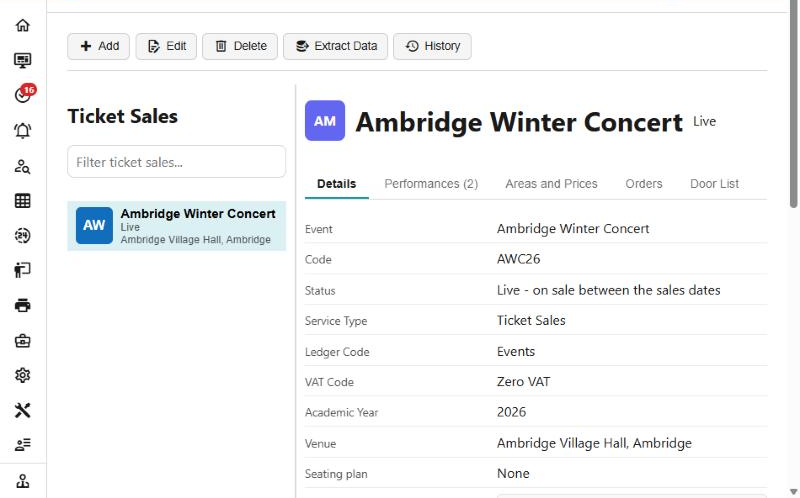
The Details tab carries the event itself: its name, description, picture, instructions and terms, where it is, when tickets are on sale, who may buy, and how long a basket is held.
A few of these are required before it will save, and Xperios says which:
- a service type whose category is Ticket Sales
- a ledger code the sales post to, and a VAT code
- an academic year the sales are invoiced in
- sales close after they open
- tickets held for between 5 and 60 minutes
- a link code — press New link if there is not one
- a seating plan, if buyers are to choose their own seats
Status runs Pending while you set it up, Live while it is on sale between the sales dates, then Cancelled or Finished. Nothing is on sale until it is Live — and being Live is not enough on its own, because the sales window still applies.
Who can buy, and how they get there
Every event has a sales link with an unguessable code in it, and Audience decides how widely it is known:
| Audience | What it means |
|---|---|
| Only people with the link | Not listed anywhere. The link is the only way in |
| Portal and app users — listed for them | Your own families see it when they sign in |
| Anyone — also listed on the public page | Listed publicly, as well as reachable by its link |
Copy link puts the address on your clipboard, to put in a newsletter, an email of your own or a page on your website.
Send sales link emails it for you. Choose a Distribution List and Xperios sends that list the Tickets on sale email — the event, its description, the performances still to come, the venue, when sales close, and the link to buy. It goes as one batch of marketing mail, so it leaves on the marketing channel with an unsubscribe link, and anyone unsubscribed or suppressed is left out, exactly as a Distribution List send always is. People with no usable address, who have asked for no communication at all, or who share an address with somebody already in the batch are left out too, and counted so you can see how many. It needs Change on Events, and it is refused where the event is not Live, sales have closed, there is no link, or no performance is still to come.
The page opens before anybody signs in, so a buyer can see the show and the prices first and sign in when they are ready to pay.
Performances
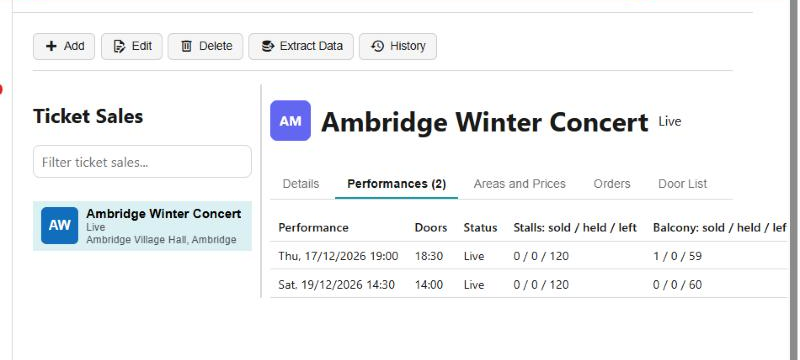
Each performance has its date and time, when the doors open, its own sales close if you want one, and a status of its own — Live, Sales stopped or Cancelled. Stopping sales on one night leaves the others selling.
Beside each is a count per area: sold / held / left. Held means a basket is open on those seats and has not been paid for yet, so the middle number moves on its own and settles again when baskets expire.
A performance must end after it starts, and its sales cannot close after it has started.
If a night has to be called off, use Cancel on the Performances tab rather than setting the status by hand — once tickets are sold, the status on its own is refused, because it would leave buyers holding paid tickets for a performance that is not happening. Cancel takes it off sale and cancels every paid order's tickets for that night, exactly as cancelling an order does: seats freed, the money credited, a refund raised, your reason recorded, and one Performance changed or cancelled email to each buyer telling them what has happened and what they are getting back. An order spanning other nights keeps those tickets. It is safe to run again if it stops part-way.
If a night moves — a new time, or a different room — use Tell ticket holders. Everybody with a valid ticket for it is emailed in your own words, and their tickets stay valid.
Areas, prices and bundles
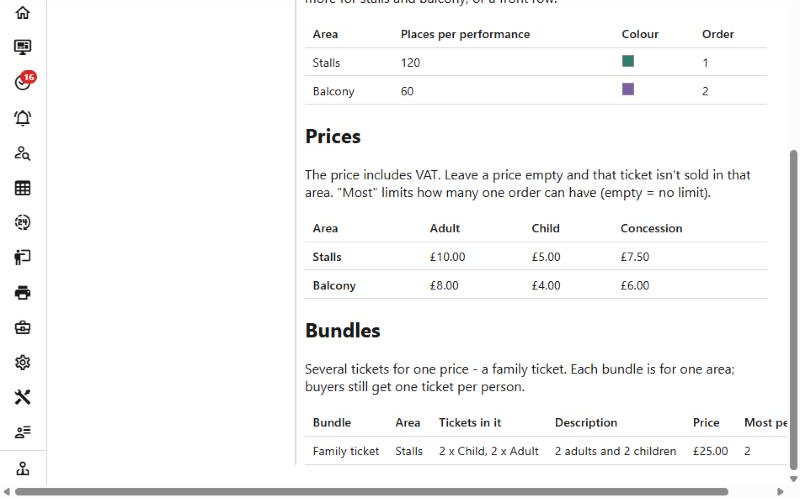
Areas are the parts of the house you price differently. Most events need only one; add more for stalls and balcony, or for a front row. Each carries the number of places per performance, a colour, and the order they are shown in. Every area needs a name, and two areas cannot share one.
Prices are a grid: your areas down the side, your ticket types across the top, a price in each cell. Two things are worth knowing about it:
- the price includes VAT
- leaving a cell empty means that ticket is not sold in that area — it is how you say "no concessions in the balcony" rather than something being unfinished
Most beside a price limits how many of it one order may have; empty means no limit.
Bundles are several tickets for one price — a family ticket of two adults and two children. A bundle belongs to one area, and the buyer still gets one ticket per person, so the door list and the admissions are unaffected.
Seated events
Where you want buyers to choose their own seats, give the event a seating plan and a Seating tab appears. The plan is drawn once for a venue room and reused by every event in it, so a hall is laid out once rather than per concert.
On the event you paint the plan's seats into your areas, which is what connects a seat to a price. Per performance you can block seats — for a sound desk, or a reserved row — and see who is holding one.
Without a plan an event is simply areas with a number of places each, which is all most concerts need.
Buying, and what holds a seat
Buying follows the pattern every ticketing system uses: hold, pay, issue.
- The buyer picks a performance, then either how many of each ticket they want in each area, or their seats on the plan.
- The seats are held — for the number of minutes the event allows — and the order is priced on the server. Nothing is admissible yet.
- They pay by card. Paying extends the hold once, so nobody is cut off part-way through the card provider's page.
- The payment confirms: the order is paid, the seats are sold, the invoice and receipt are raised, and the emails go.
A basket nobody pays for gives its seats back on its own when the hold runs out. That is why the held count on the Performances tab goes up and down without anybody doing anything, and why seats are not lost when somebody abandons a purchase.
Where every price is zero the payment steps are skipped — the order is confirmed at once and no invoice is raised.
The buyer becomes a debtor
Buyers sign in with their Paritor Identity, which makes them a contact, and paying makes them a debtor if they were not one already. The invoice and the door list are therefore in the buyer's name.
Orders
The Orders tab lists every order on the event: its number, the buyer, the performance, how many tickets, the total and the status.
| Status | What it means |
|---|---|
| Awaiting payment | Held, not yet paid |
| Paid | Confirmed, tickets issued |
| Expired | The hold ran out and the seats went back |
| Cancelled | Cancelled by your office |
| Refunded | Cancelled and the money returned |
Three actions sit on a paid order, each needing Change on Events.
Cancel takes the whole order, or just one performance's tickets where the order spans more than one night. You give a reason, and you choose whether the buyer is emailed. Xperios then, in one go: cancels the tickets, puts their seats back on sale, credits the invoice lines, and raises a refund for that amount against what was paid. The refund arrives in Refund Approvals as Pending, like every other refund your service makes — so it is paid back to the card when you authorise it, or marked accepted where it has to be refunded by hand. The order shows Cancelled once nothing valid is left on it, and Refunded once the money has gone back.
Resend sends the tickets again, with the PDF of that order's valid tickets. Send it to the buyer, or type another address where the first one went astray; either way it is filed on the buyer's record. Tickets that were not due yet are marked as sent, so the hourly job does not send them a second time.
Note adds a line of your own to the order — dated and with your name on it, added after whatever the buyer wrote rather than over it. It shows on the Orders tab and on the door list, which is what makes it useful: a note about one party's seating is read by whoever is on the door. It is refused if it would take the order's notes past 500 characters.
Notes are the buyer's words first
Notes opens with whatever the buyer typed when they ordered — usually an access need. Your own notes are added underneath. Nothing you write replaces what they said.
Buyers cannot cancel paid tickets of their own accord, which is the usual arrangement for ticketed events. Say so in the event's terms. They can abandon an unpaid basket, and its seats go back when the hold runs out.
The door list
The Door List tab gives you a performance's list by buyer surname: the order number, how many tickets of each type, the seats where there are seats, the ticket codes, and whatever the buyer told you in their notes. Paid orders only.
Print opens it as a plain printable sheet with a blank column down the left to tick people off by hand. There is no export, and no ticking on screen.
Door Team, on the Details tab, is who may check tickets in at the door — your own staff or any contact, a parent volunteer or the caretaker, who then see this one event's door list and nothing else. Checking in happens in the mobile app: whoever is on the door team gets an On the door entry, scans each ticket's QR code and is told at once whether to let that person in, with no signal needed in the hall. The In column fills from those scans, order by order — "2 of 4" — and the line above the table counts them up: "37 orders, 210 tickets, 48 checked in."
The printed sheet is still worth taking
Xperios Mobile is with testers rather than in the app stores, so a door team that has not got the app works from the printed list. Where some of the door team scan and some tick by hand, the In column counts only the scans.
What gets emailed
Ticket Sales has its own set of message templates, overridable per service type like every other kind:
| Sent | |
|---|---|
| Purchase confirmation | When an order is paid, or a free one is confirmed |
| Here are your tickets | With the confirmation, or a set number of days before the performance — your choice on the Details tab |
| Performance reminder | A set number of days before, if you ask for one |
| Tickets on sale | When you press Send sales link |
| Order cancelled | When you cancel an order and ask for the buyer to be told — and in the one automatic case below |
| Performance changed or cancelled | When you cancel a performance, and when you use Tell ticket holders |
The tickets email carries a PDF, one page per ticket, with the performance, area, seat, type, order number and a code for the door. An hourly job sends the ones that are due, and tries again where a send failed.
The one automatic cancellation. If a card payment arrives after the hold has already run out and the seats have gone back, Xperios cancels that order, emails the buyer to say so with a line about their refund, and tells your finance team there is money to return. The same happens if an order somehow pays twice. It is rare, and it is the only cancellation Xperios makes on its own.
The two settings lists behind it
Ticket Types (Settings > Finance) are the kinds of ticket every event prices — Adult, Child, Concession, Senior. They are shared by every event, so add the ones your service uses once and they appear across the top of each event's price grid.
Seating Plans (Settings > Finance) are halls, drawn once. A plan belongs to a venue room and holds its sections, rows and seats, so an event that lets buyers choose seats sells from a plan rather than from a bare number of places.
See also
- Events — the other kind of event, the one people apply for
- Finance settings — Ticket Types and Seating Plans, with the rest of the money lists
- Debtors — where a buyer's invoice and payment end up